How to send SMS from Klaviyo flows using Kudosity webhooks
Connect with customers at every stage.
Follow the steps to set up, test and launch your messaging flows.
Sending SMS using Kudosity webhooks
You can send SMS from Klaviyo flows by adding a webhook action that calls the Kudosity V2 SMS API.
When a Klaviyo flow reaches the webhook action, Klaviyo sends a POST request to Kudosity. Kudosity then sends the SMS using the sender, recipient and message content defined in your JSON payload.
This lets you add SMS to existing Klaviyo automations for use cases such as abandoned carts, order confirmations, shipping updates, welcome messages and promotional campaigns.
What does the Klaviyo and Kudosity integration do?
Klaviyo already manages the customer data, events and triggers that determine when a flow should run. Kudosity handles the SMS send.
The integration connects the two using a Klaviyo webhook:
A customer triggers a Klaviyo flow.
The flow reaches the webhook action.
Klaviyo sends a
POSTrequest to the Kudosity V2 SMS API.Kudosity sends the SMS to the phone number stored on the customer’s Klaviyo profile.
There’s no separate manual SMS workflow to trigger.
What can you use Klaviyo SMS webhooks for?
You can use this setup to:
Send abandoned cart reminders when a customer leaves checkout
Send order confirmations
Trigger shipping or fulfilment updates
Welcome new subscribers
Send birthday or milestone messages
Personalise promotional SMS using Klaviyo profile and event data
Track messages using a custom
message_ref
What do you need before you start?
| Required | Description |
|---|---|
| A Kudosity account | Sign up for a 14-day free trial at kudosity.com/trial if you don't have one already. |
| Your Kudosity API key | Found in your account settings under API settings. |
| A sender ID or virtual number | Registered brand sender ID, or a Dedicated Virtual Mobile Number (DVN) |
| A Klaviyo account | With MFA-enabled and access to: 1. Flow builder 2. Webhooks |
Get your Kudosity API credentials
Log in to your Kudosity account.
Then
Select the circle icon in the top-right corner.
Select Account Settings.
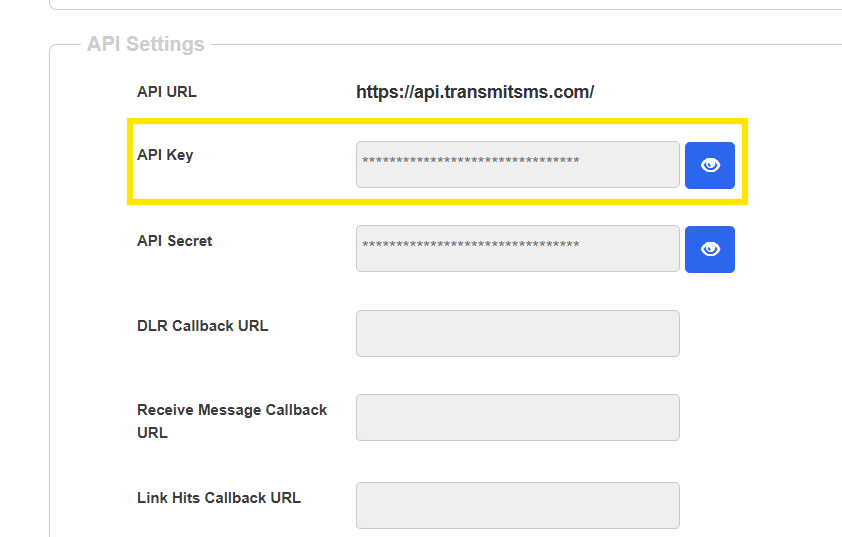
Scroll to API Settings.
Copy your API key.
You’ll use this API key to authenticate requests from Klaviyo.
You’ll also need your sender ID or virtual mobile number. If you’re using an alphanumeric sender ID, make sure it has been registered and whitelisted before you use it.
From the Kudosity dashboard, go to Senders and select Add Sender ID if you haven’t configured one yet.
Use the Kudosity V2 API for this integration. The V2 API:
Authenticates using your API key
Doesn’t require an API secret
Doesn’t require Base64 encoding
Supports
POSTrequests
Klaviyo webhooks send POST requests, which is why V2 is the appropriate API version for this setup.
The Kudosity V1 API sends using GET, so it isn’t suitable for this Klaviyo webhook configuration.
Create a flow in Klaviyo
In Klaviyo,
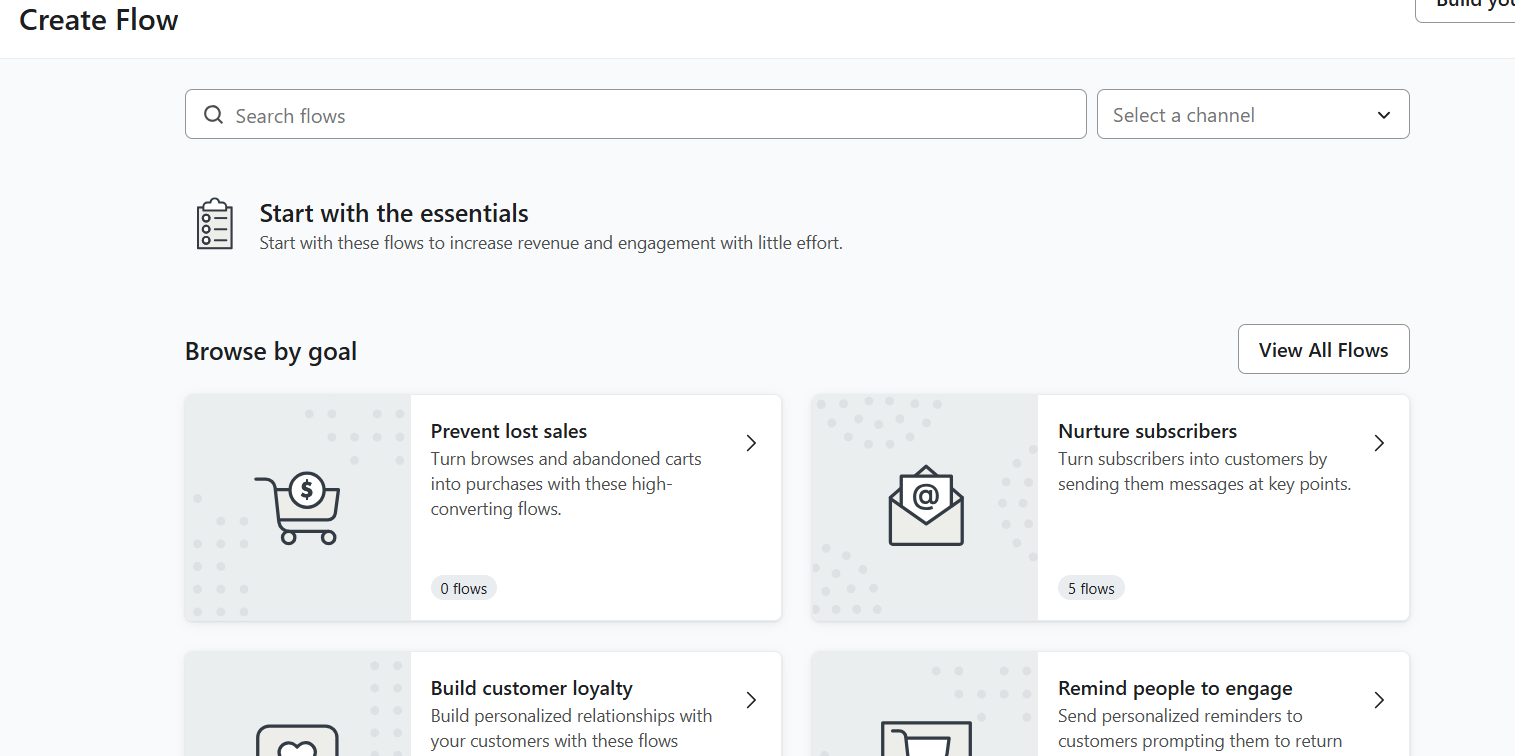
Go to Flows in the left-hand panel.
Select Create Flow.
Choose a pre-built template from Browse by goal, or select View All Goals.
4. Choose the trigger that matches the automation you want to build.
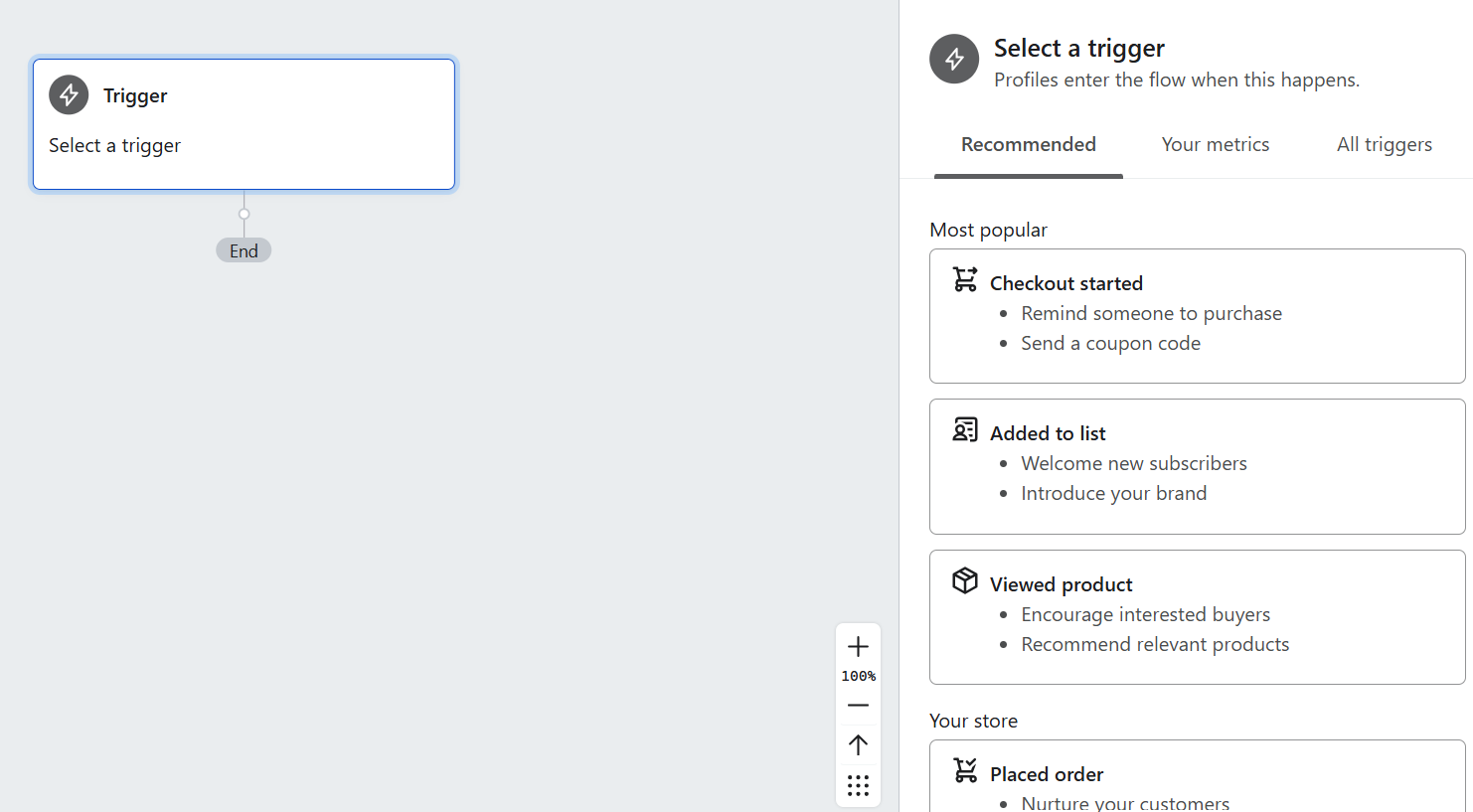
For example:
Added to cart
Order placed
Subscribed to list
Add the Kudosity webhook to your Klaviyo flow
In the Klaviyo flow builder:
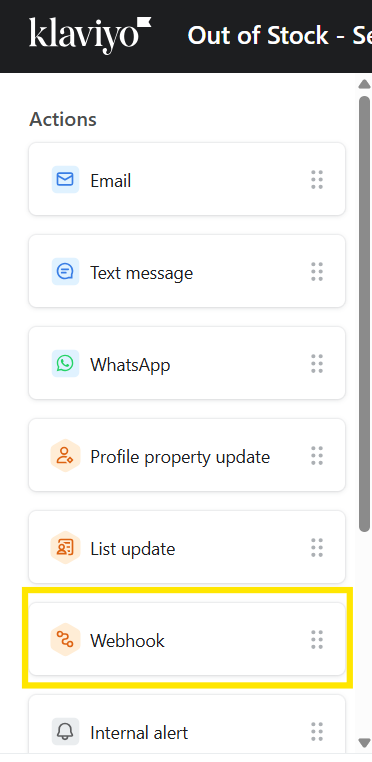
Find Webhook under Actions.
Drag the webhook into the point in the flow where you want the SMS to be sent.
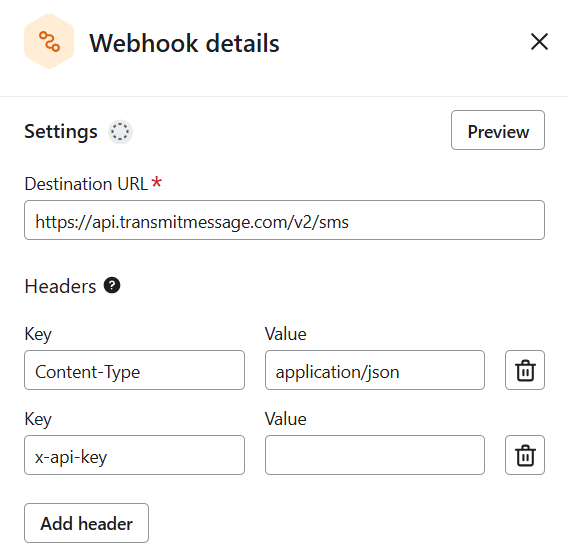
Select the webhook action to open its settings.
Klaviyo requires Multi-Factor Authentication before you can use webhooks.
If MFA isn’t already enabled, configure it before continuing or the webhook action won’t save.
Use the following destination URL:
https://api.transmitmessage.com/v2/smsRequest headers
Configure these request headers in Klaviyo:
| Header | Value |
|---|---|
| Content-type | Application/JSON |
| x-api-key | Your Kudosity API key |
The x-api-key header authenticates the request with Kudosity.
Add the JSON body
Scroll to the JSON body section in Klaviyo. Use the following structure as a starting point:
{

  "sender": "YOUR_SENDER_ID",

  "recipient": "{{ person.phone_number }}",

  "message": "Hi {{ person.first_name|default:'there' }}, your message content here."

}
What fields are required in the Kudosity SMS request?
| Parameter | Description |
|---|---|
| Sender | Your Kudosity branded sender ID or virtual number in. |
| Recipient | The customer's phone number, pulled from their Klaviyo profile. |
| Message | Your SMS content, which can include Klaviyo profile properties for personalisation. |
| Message-ref (Optional) | A custom reference so you can track individual messages later. |
Personalising with Klaviyo profile properties
| Property | What it pulls |
|---|---|
| {{ person.first_name }} | Customer's first name |
| {{ person.last_name }} | Customer's last name |
| {{ person.email }} | Customer's email |
| {{ person.phone_number }} | Customer's phone number |
| {{ person.id }} | Klaviyo profile ID |
Where possible, add a default value to personalisation fields.
{{ person.first_name|default:'there' }}
This helps avoid messages with missing content when a Klaviyo profile doesn’t contain a first name.
For example, instead of:
Hi , your order has been confirmed.
the recipient receives:
Hi there, your order has been confirmed.
How do you add line breaks to an SMS message?
Use:
\ninside the message value.
What phone number format should Klaviyo use?
Store customer phone numbers in E.164 international format.
For example:
61400000000The number should include the country code.
Working with Klaviyo’s JSON editor
There are two Klaviyo interface behaviours worth knowing.
Copied profile properties
When you copy a profile property, Klaviyo’s confirmation that the value has been copied may only appear after you close the preview window.
If you don’t see the confirmation immediately, the copy may still have worked.
Cursor behaviour
The text cursor in Klaviyo’s JSON editor can sometimes move unexpectedly while you type.
For longer payloads, build and check your JSON in a plain text editor first, then paste the completed payload into Klaviyo.
Klaviyo and Kudosity webhook examples
Order confirmation SMS
{

  "sender": "YourBrand",

  "recipient": "{{ person.phone_number }}",

  "message": "Thanks {{ person.first_name }}! Your order #{{ event.order_id }} has been confirmed. We'll notify you when it ships. Opt-out reply STOP.",

  "message_ref": "order-{{ event.order_id }}"

}
Welcome SMS
{

  "sender": "61400000000",

  "recipient": "{{ person.phone_number }}",

  "message": "Welcome to YourBrand, {{ person.first_name|default:'friend' }}! Thanks for subscribing. Use code WELCOME10 for 10% off your first order. Opt-out reply STOP."

}
Abandoned cart SMS
{

  "sender": "61400000000",

  "recipient": "{{ person.phone_number }}",

  "message": "Hi {{ person.first_name|default:'there' }}, you left items in your cart! Complete your purchase: {{ event.extra.checkout_url|default:'https://yourstore.com/cart' }} Opt-out reply STOP."

}Test the Klaviyo webhook before going live
Test the integration before switching the flow on.
Set the Klaviyo flow to Manual mode.
Make sure your test Klaviyo profile contains a valid mobile number.
Select Preview on the webhook.
Review the complete JSON payload Klaviyo will send.
Select Send Test Request.
Check your Kudosity message logs.
Confirm the SMS request was received and processed as expected.
Check the rendered values for:
senderrecipientmessagemessage-ref, if usedany Klaviyo event properties
Once the webhook is working correctly, switch the flow live.
How to track SMS delivery status
If you want delivery status information returned to your own system, add a message_ref to each SMS request and configure a Kudosity webhook to receive status updates.
Depending on the delivery result, these updates may include statuses such as:
sent
delivered
failed
You can create the delivery webhook using the Create Webhook V2 API. Refer to the Kudosity developer documentation for the full API specification.
Example:
{

  "sender": "YOUR_SENDER_ID",

  "recipient": "{{ person.phone_number }}",

  "message": "Hi {{ person.first_name|default:'there' }}, your message content here."

}
Kudosity returns the message_ref in the webhook callback, allowing your system to associate a status update with the relevant message.
Choose a reference structure that gives your systems enough information to identify the original Klaviyo profile, flow or event.
Good messages start with a little guidance.
Need a hand with your Klaviyo integration?
Keep exploring
:quality(80))
:quality(80))
:quality(80))