1-to-1 SMS Conversations in Salesforce
Embed a live SMS conversation panel on any Salesforce object page; Lead, Contact, Opportunity, or custom. Send, receive, and view full conversation history in real time, right alongside the CRM record.
:quality(80))
1-to-1 SMS Conversations
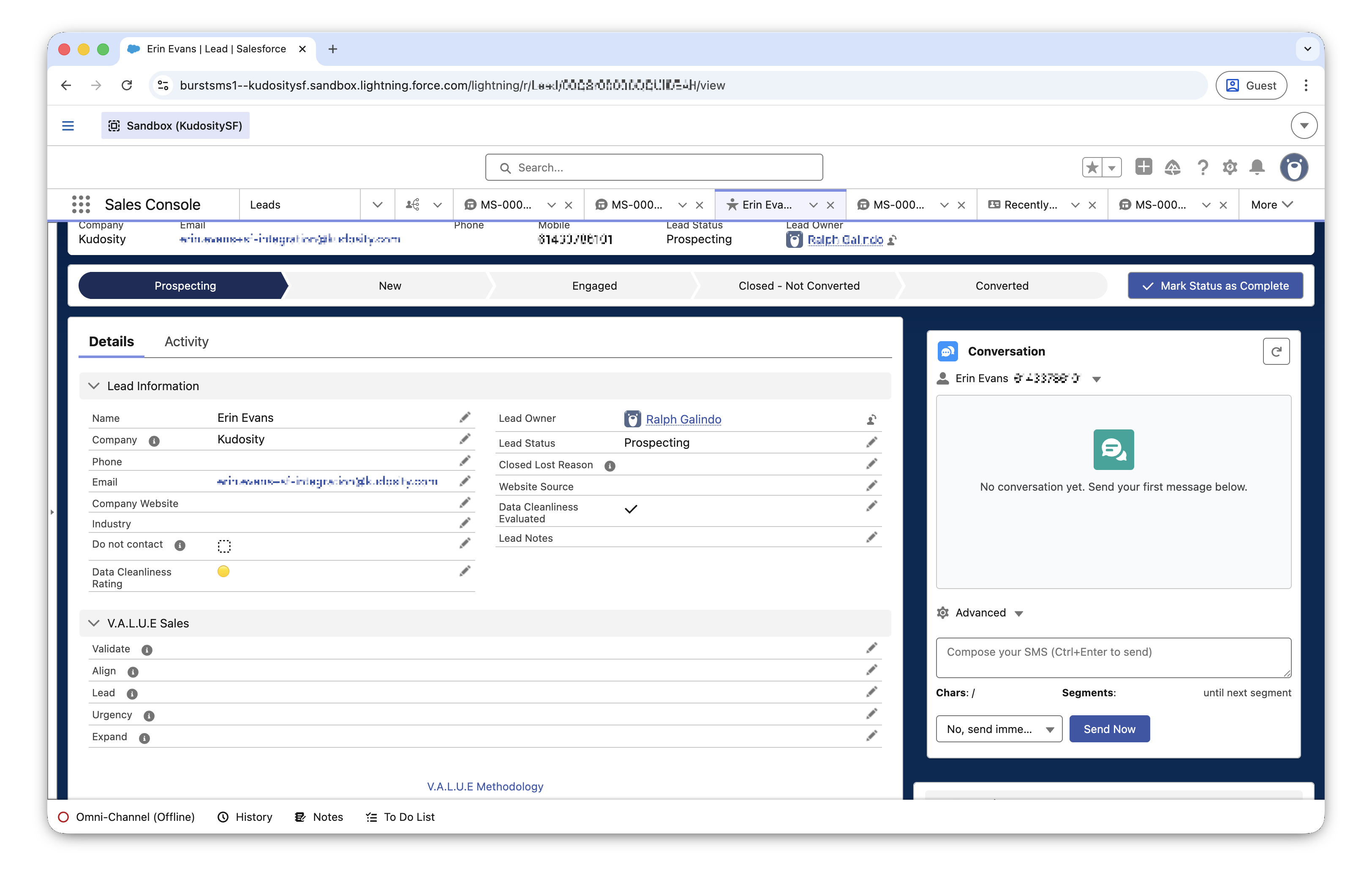
The Kudosity Conversation App embeds a live SMS panel directly into any Salesforce object page — Lead, Contact, Opportunity, Case, or any custom object. Your team can send and receive SMS without leaving Salesforce, with full real-time conversation history displayed alongside the CRM record.
What you can do:
Send and receive SMS directly from any object record
View complete conversation history in real time — no page refresh needed (new in v0.23.0-1)
Use templates, merge fields, and tracked links in 1-to-1 messages
Schedule messages from the conversation panel
See all engagement history, including campaign messages previously sent to that contact
Tracked links are automatically recorded on Conversation records when clicked
Real-time inbound replies require the Live Responses / Reporting ECA to be set up and showing CONNECTED. Without ECA, replies will not appear in the panel automatically.
Prerequisites
Kudosity Salesforce integration is installed and connected
Live Responses / Reporting ECA set up and showing CONNECTED
At least one verified Sender ID in your Kudosity account
Salesforce page layout editing access
The conversation panel needs to be added to each object page layout where you want it to appear. This is a one-time setup per object, performed by an administrator.
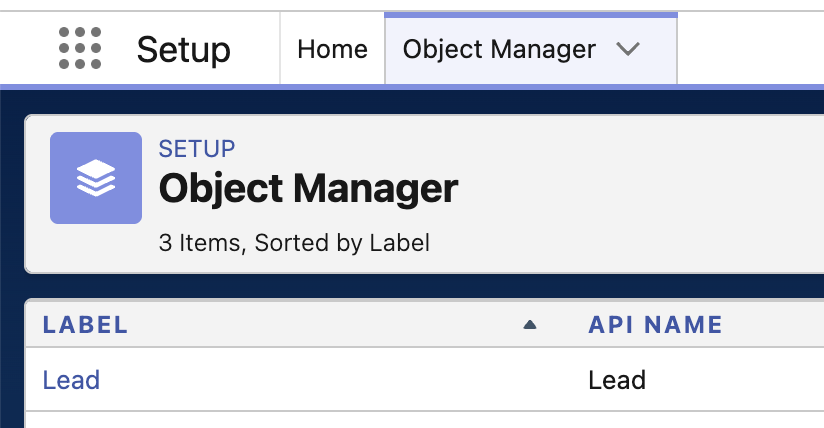
Step 1 — Open the Object Manager
Navigate to the Salesforce setup and look for Object Manager.
Click the object label to open.
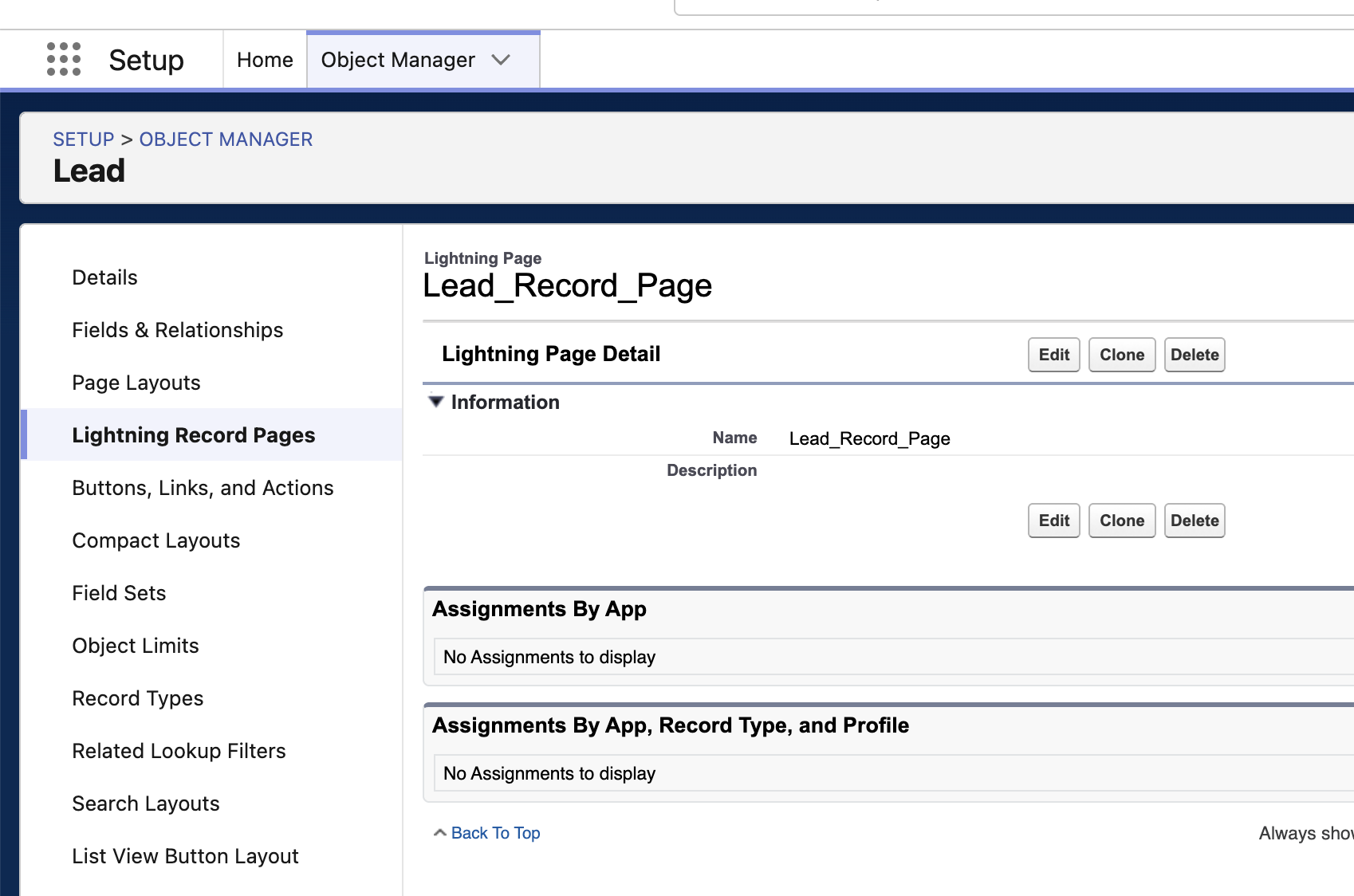
Step 2 — Edit Lighting Record Page
Find the Lightning Record Pages
From the list, find the page you want to insert the conversation panel.
Open and click Edit.
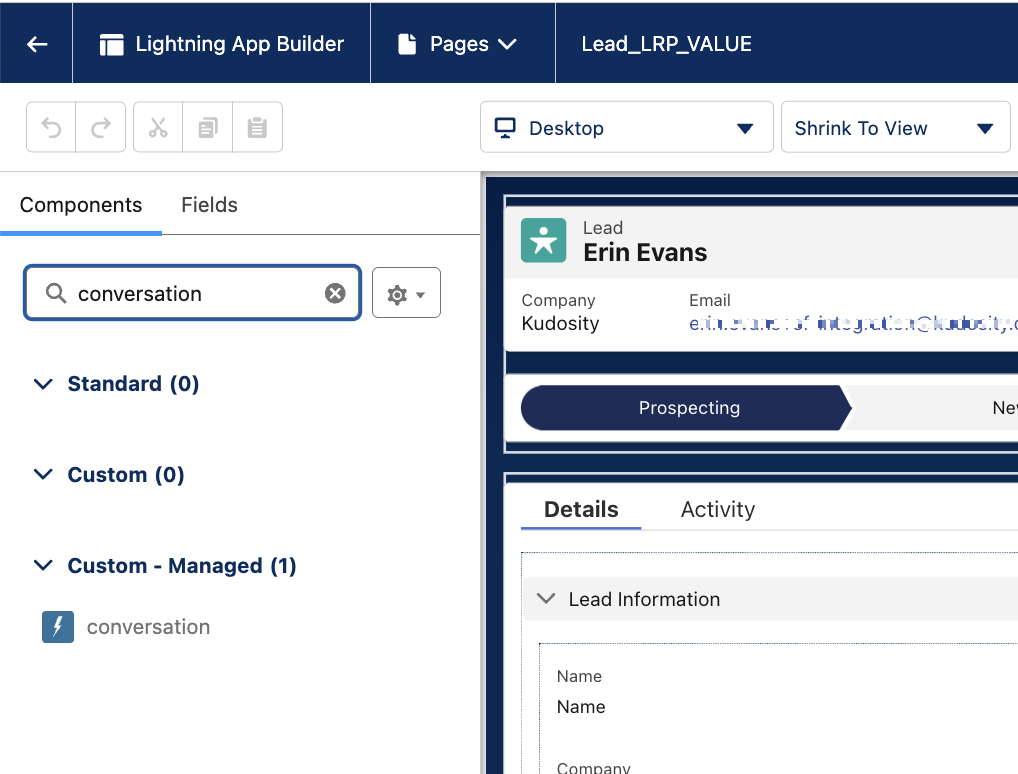
Step 3 — Add the Conversation Component
In the Lightning App Builder, open the Components panel on the left.
Search for
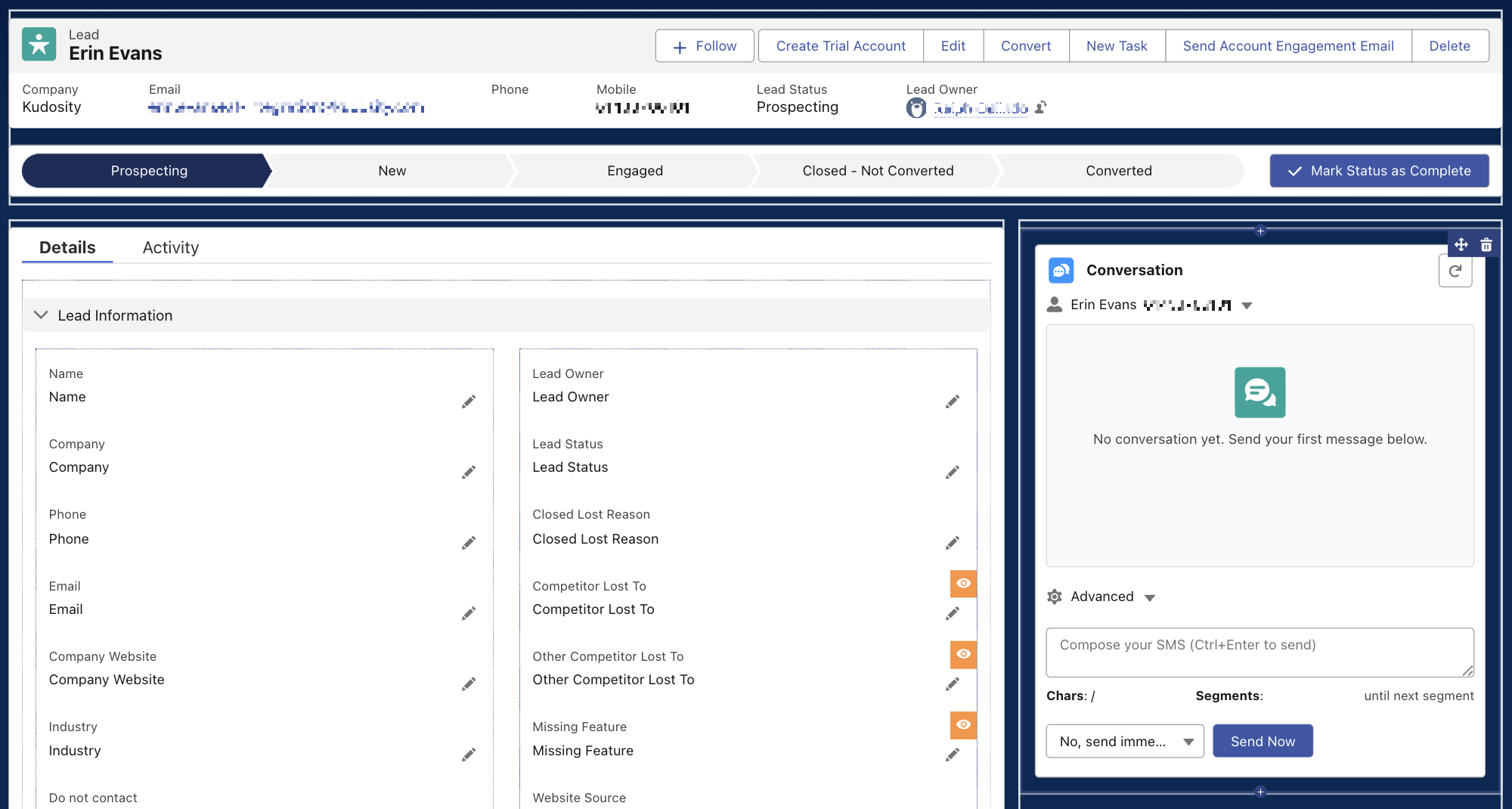
Conversation.Drag the Kudosity Conversation component to your desired position on the page layout.
Step 4 — Save and Activate
Click Save. When prompted, choose your activation scope — typically App, Record Type, and Profile or App Default. Return to the record page — the SMS Conversation panel is now available.
Sending a Message
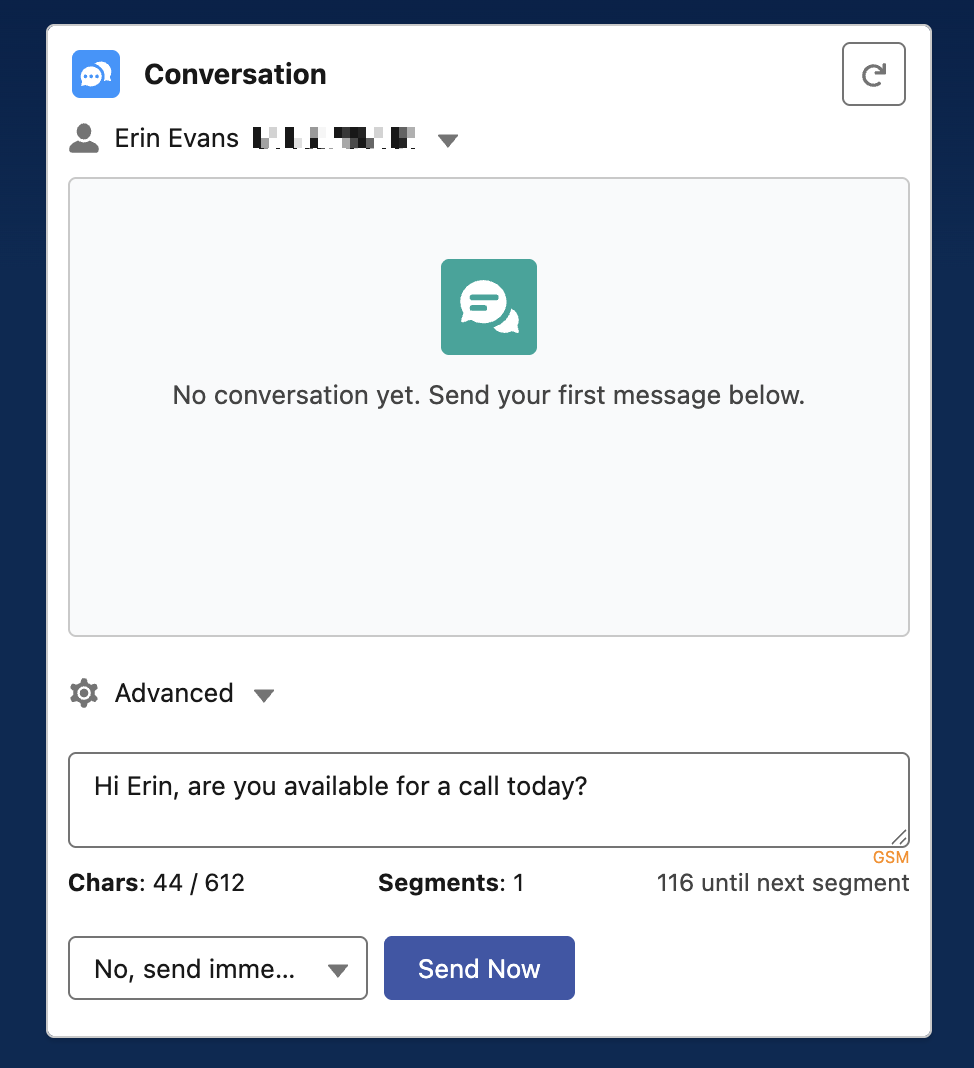
From any record with the panel installed:
Type your message in the conversation input.
Select your Sender ID from the dropdown — your admin may have pre-assigned a default.
Optionally add a merge field, template, or tracked link.
Click Send.
Viewing Conversation History
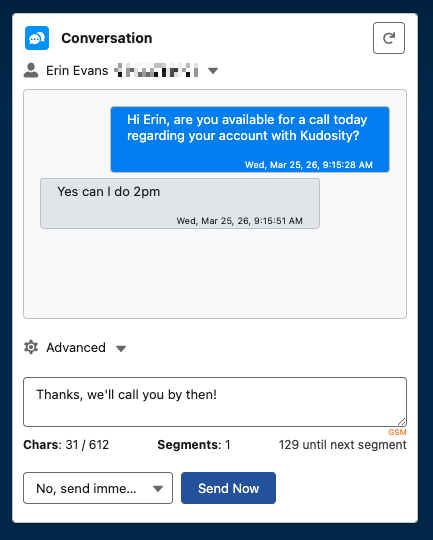
The conversation window displays in real time and shows all messages sent to this contact via the conversation panel, all campaign messages previously sent via the Messaging tab, inbound replies from the contact, and timestamps with delivery status.
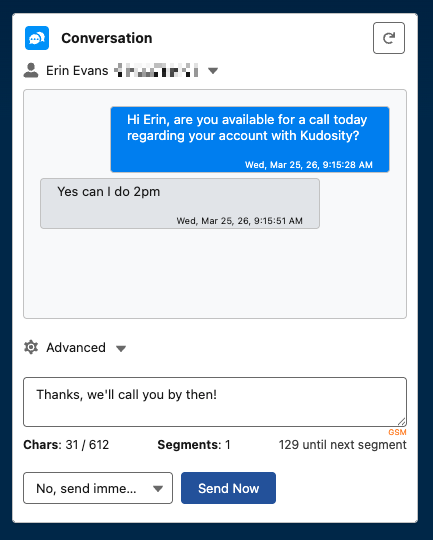
Real-time updates (new in v0.23.0-1): The conversation panel now updates automatically when a reply arrives. You no longer need to manually refresh the page to see new inbound messages.
Templates
Select a saved template to pre-fill your message. Templates created in the Messaging tab are available here too — your library is shared across bulk and 1-to-1 messaging.
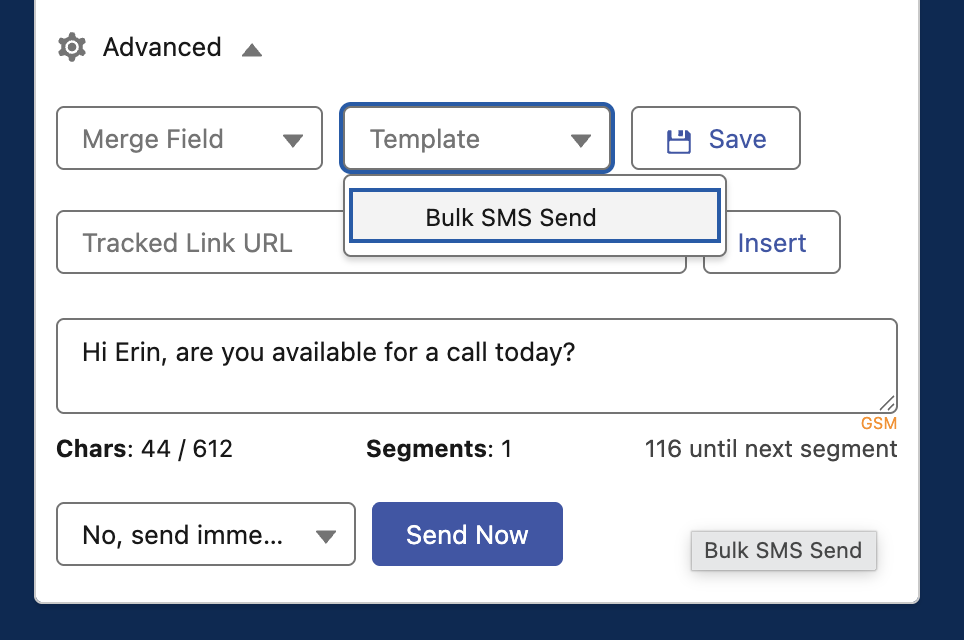
Merge Fields
Personalise messages with any field from the current record — same behaviour as bulk campaigns. The merge field token inserts at your current cursor position in the message.
Tracked Links
Add a URL to generate a tracked short link. Clicks are recorded in the Link Hits tab, stored on the Conversation record (tracked_link__c field) — updated automatically when a delivery event fires — and available as triggers for Salesforce Flows via Platform Events.
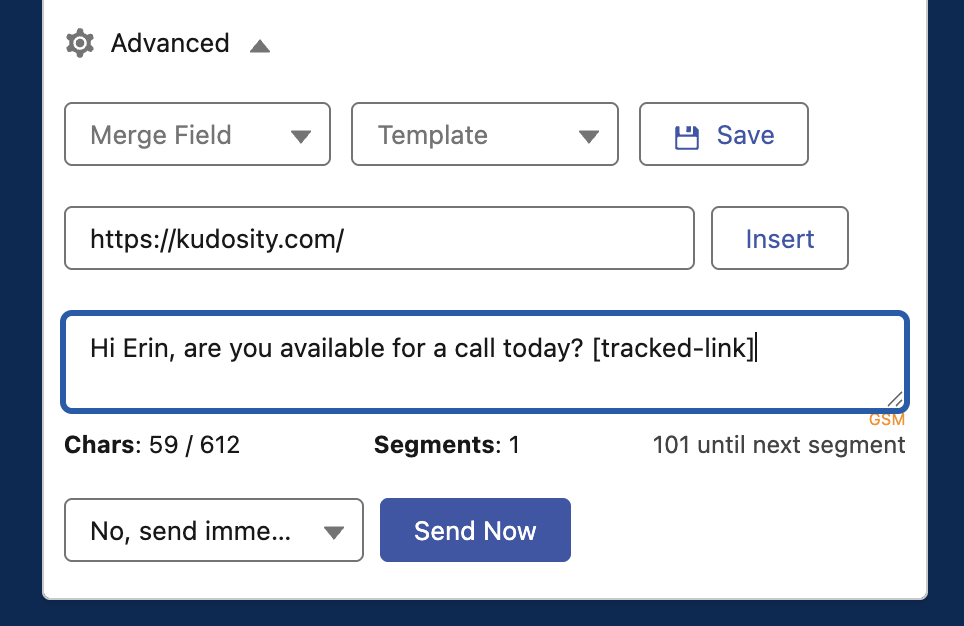
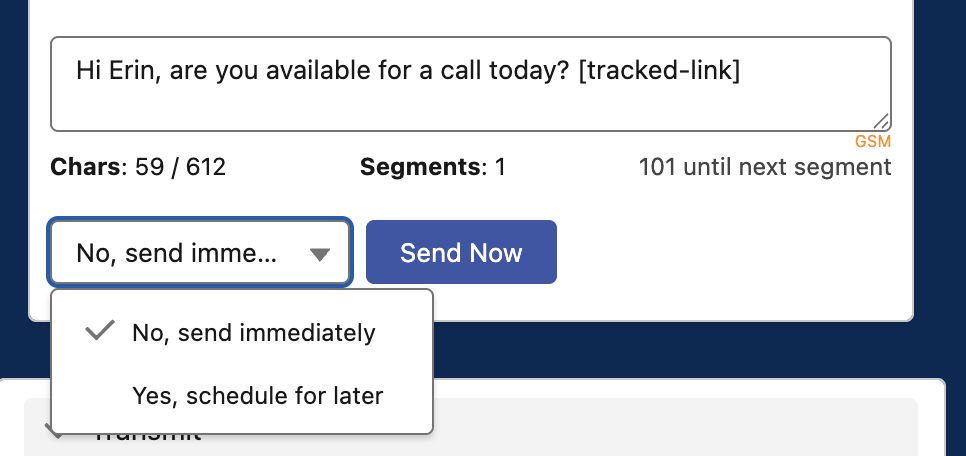
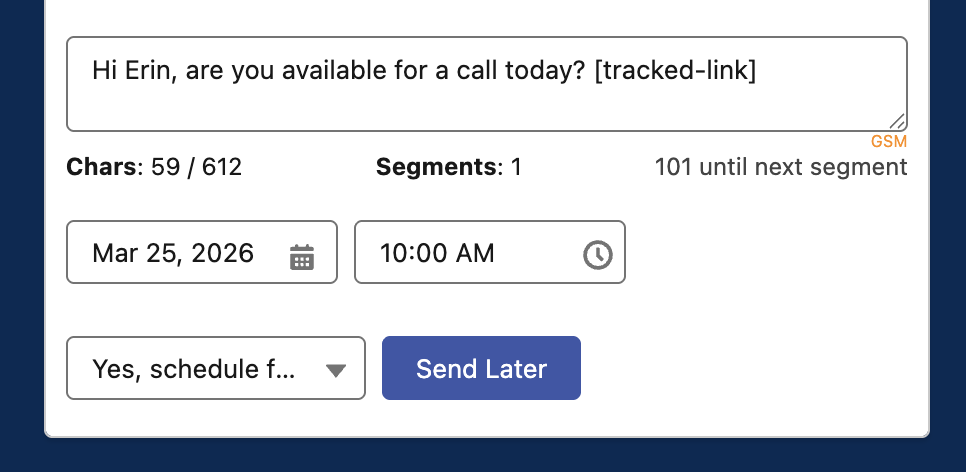
Scheduling
Schedule a message for a specific date and time directly from the conversation panel.
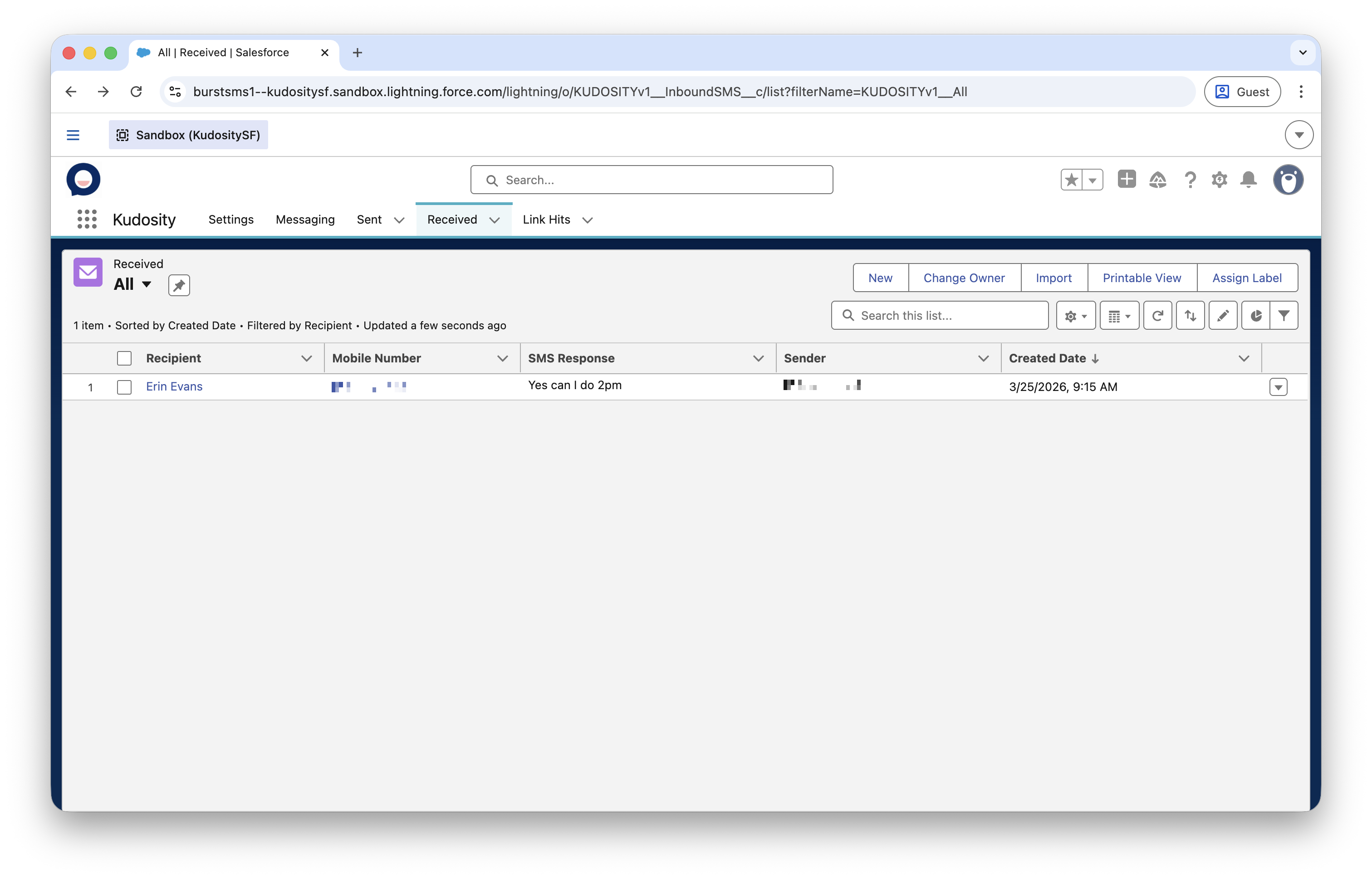
When a contact replies, the message appears automatically in the conversation window on their record — no page refresh required. Replies are also visible in the Received tab of the Kudosity Messaging app and as a Salesforce Platform Event, which can trigger a Flow for automated follow-up.
Install the panel on Lead, Contact, and Opportunity objects as a minimum. Use templates for common outreach messages such as follow-up, meeting confirmation, and check-in. Use tracked links to see when a prospect has engaged with your content. Check the conversation history before calling — know exactly what has already been sent and received.
Avoid sending from Alphanumeric Senders if you expect a reply — use a virtual number instead. Avoid sending the same message via both the conversation panel and a bulk campaign, as both will appear in the conversation history.
Conversation panel not appearing on the record page — confirm the component was saved in the Lightning App Builder for the correct object. Check you edited the right page layout, as some objects have multiple layouts per profile.
Replies not appearing in real time — confirm Live Responses / Reporting ECA is set up and showing CONNECTED in the Kudosity setup screen. If the ECA connection has lapsed, re-run the ECA setup from the Kudosity Config page.
Tracked link not recorded on Conversation record — tracked links are updated when a delivery status event fires, so allow a short delay after sending. Confirm Live Responses is connected, as delivery events require the ECA to be active.
Cannot select a Sender ID — ensure at least one Sender ID is verified in your Kudosity account settings. If your administrator has configured User Specific Settings, confirm a Sender ID has been assigned to your user. Check that the Default Sender ID is set in the Kudosity Salesforce app global settings.
More ways to send SMS from Salesforce

Installation & User Guide
Step-by-step installation and configuration guide for the Kudosity Salesforce package

Sending Bulk Messages
Send bulk SMS campaigns directly from Salesforce to any object, any list view, with personalisation and delivery tracking.

Automating SMS Workflows
Trigger SMS messages automatically using Salesforce Flows, and use Platform Events to build event-driven messaging sequences.
Ready to automate SMS in Salesforce?
Get hands-on help from our team for customised Salesforce integrations, or jump straight into the installation guide and set up in minutes.
Activate Salesforce Integration
Instant access. Billed at $49/month add-on.