Automate SMS Workflows in Salesforce
Trigger SMS messages from Salesforce Flows based on record updates, schedules, or customer engagement.
:quality(80))
Automating SMS Workflows
Kudosity's Salesforce integration lets you trigger SMS messages automatically from within Salesforce Flows. SMS replies and link clicks can also fire Platform Events back into Salesforce, enabling fully automated, event-driven messaging sequences.
What you can automate:
Send an SMS when a record is created or updated
Trigger follow-up messages based on reply or delivery events
Schedule messages via Flow logic
Route contacts into different journeys based on SMS engagement
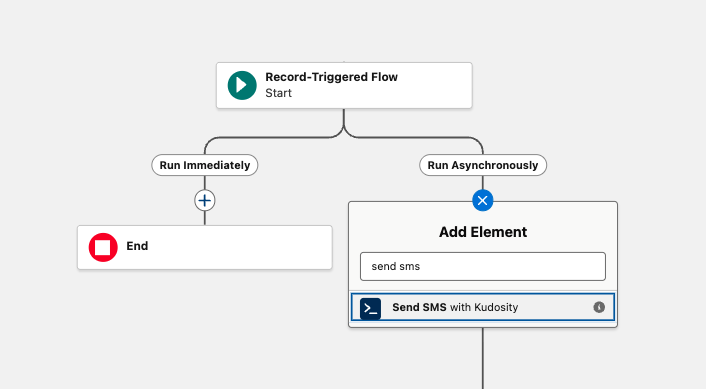
Important: The Kudosity SMS action in Flows must be configured to run asynchronously. Setting the action to run synchronously will cause the Flow to fail.
Prerequisites
Kudosity Salesforce integration is installed and connected (v0.23.0-1)
Live Responses / Reporting ECA is set up and showing CONNECTED
At least one verified Sender ID in your Kudosity account
Salesforce Flow Builder access
Step 1 — Navigate to Flow Builder
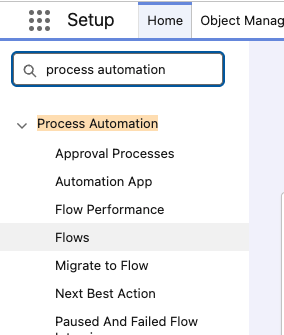
In Salesforce Setup, use Quick Find to search for Flows.
Go to Process Automation → Flows.
Click New Flow.
Step 2 — Select Flow Type
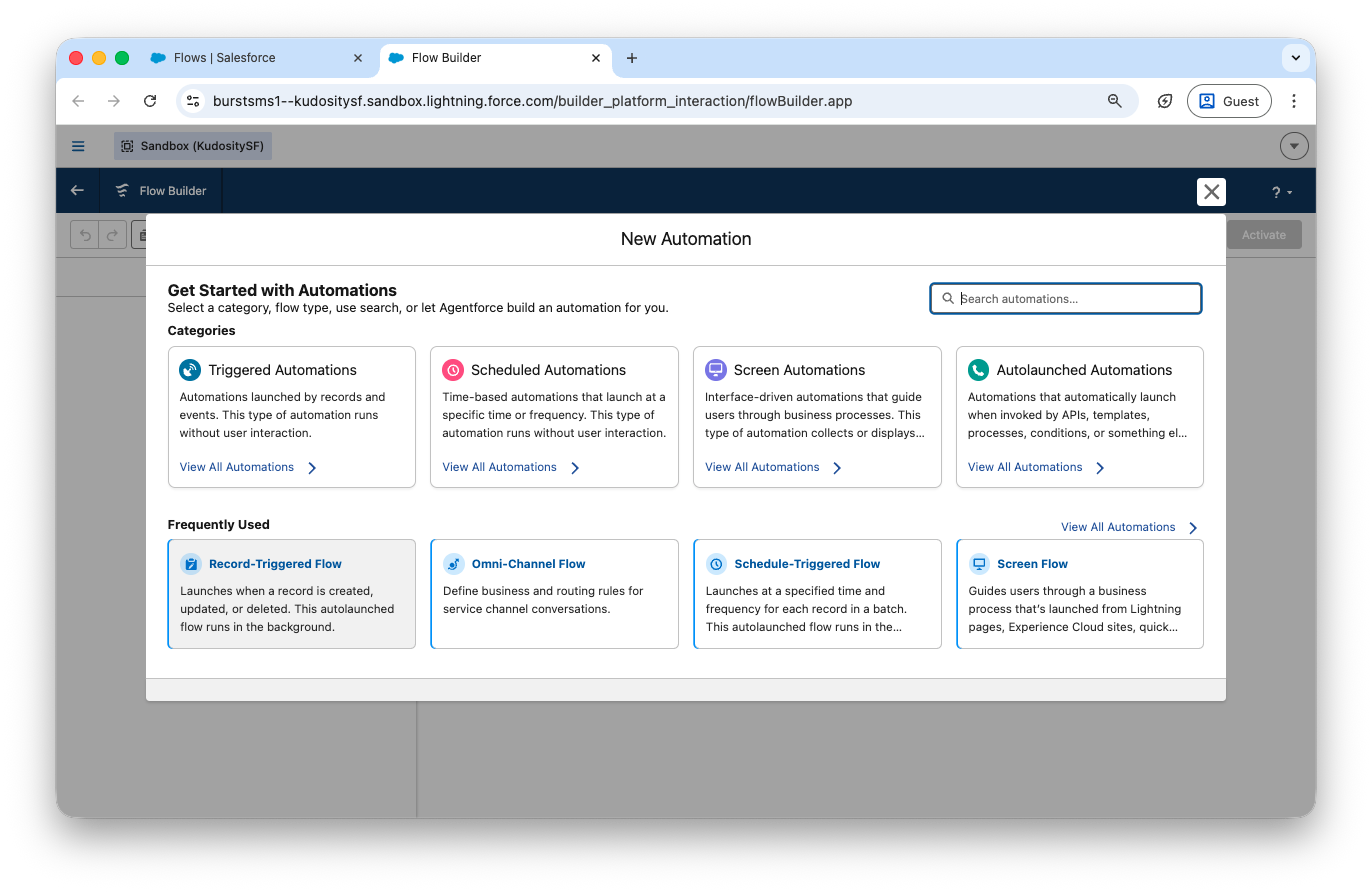
Select Record-Triggered Flow, then click Create.
Step 3 — Configure Your Trigger
Example: Send SMS to a New Lead
Set Object to Lead.
Set Trigger the Flow When to A record is created.
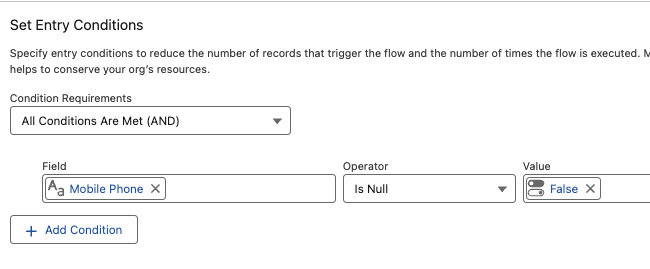
Add an Entry Condition: Mobile Phone — Is Null = False. This ensures only leads with a mobile number trigger the Flow.
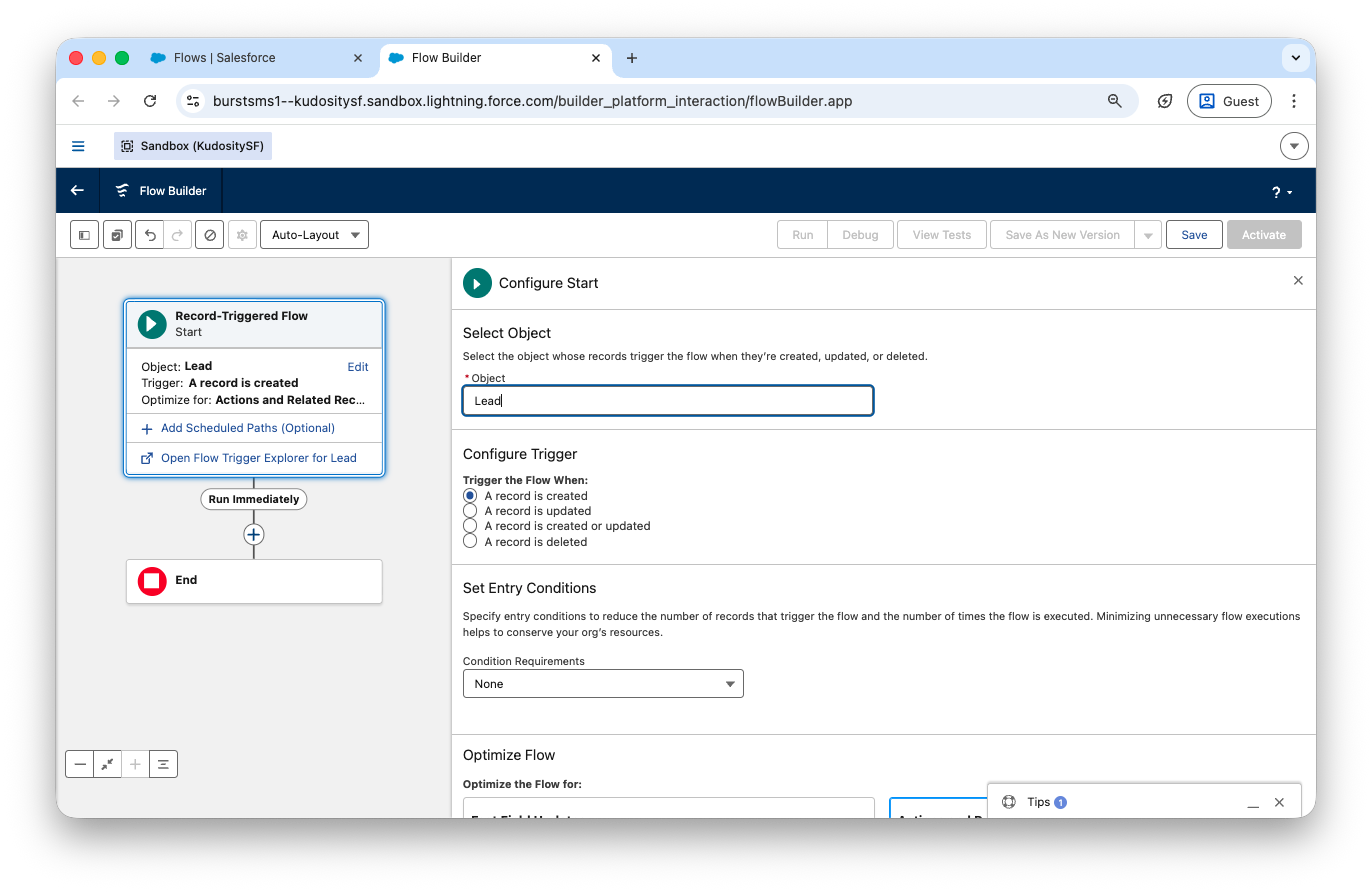
Set Optimise for to Actions and Related Records.
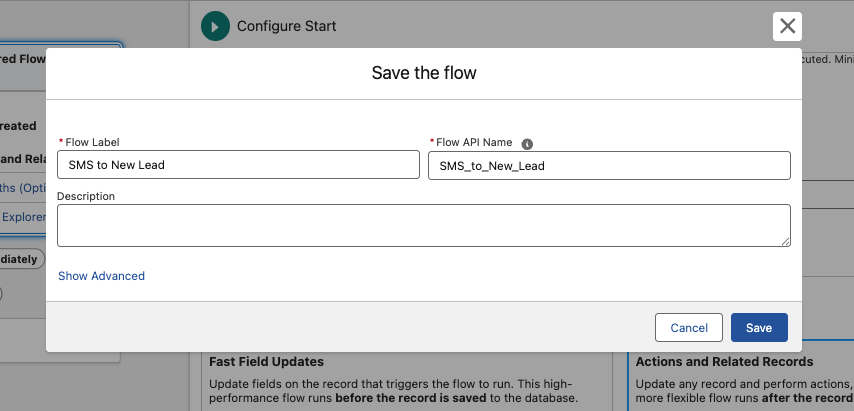
Give your Flow a label and API name, for example SMS to New Lead / SMS_to_New_Lead.
Click Save.
Step 4 — Add an Element
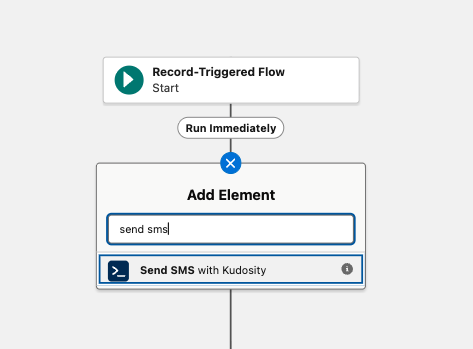
Click + in the Flow canvas to add an element.
Search for
Kudosity.Select Send SMS with Kudosity (SMS Action Apex Class).
Step 5 — Create a Message Template Resource
For personalised messages, create a New Text Template Resource:
Resource Type:
Text Template.Give it an API Name, for example
NewLeadSMS.Write your message — use merge fields from the object for personalisation.
Click Done.
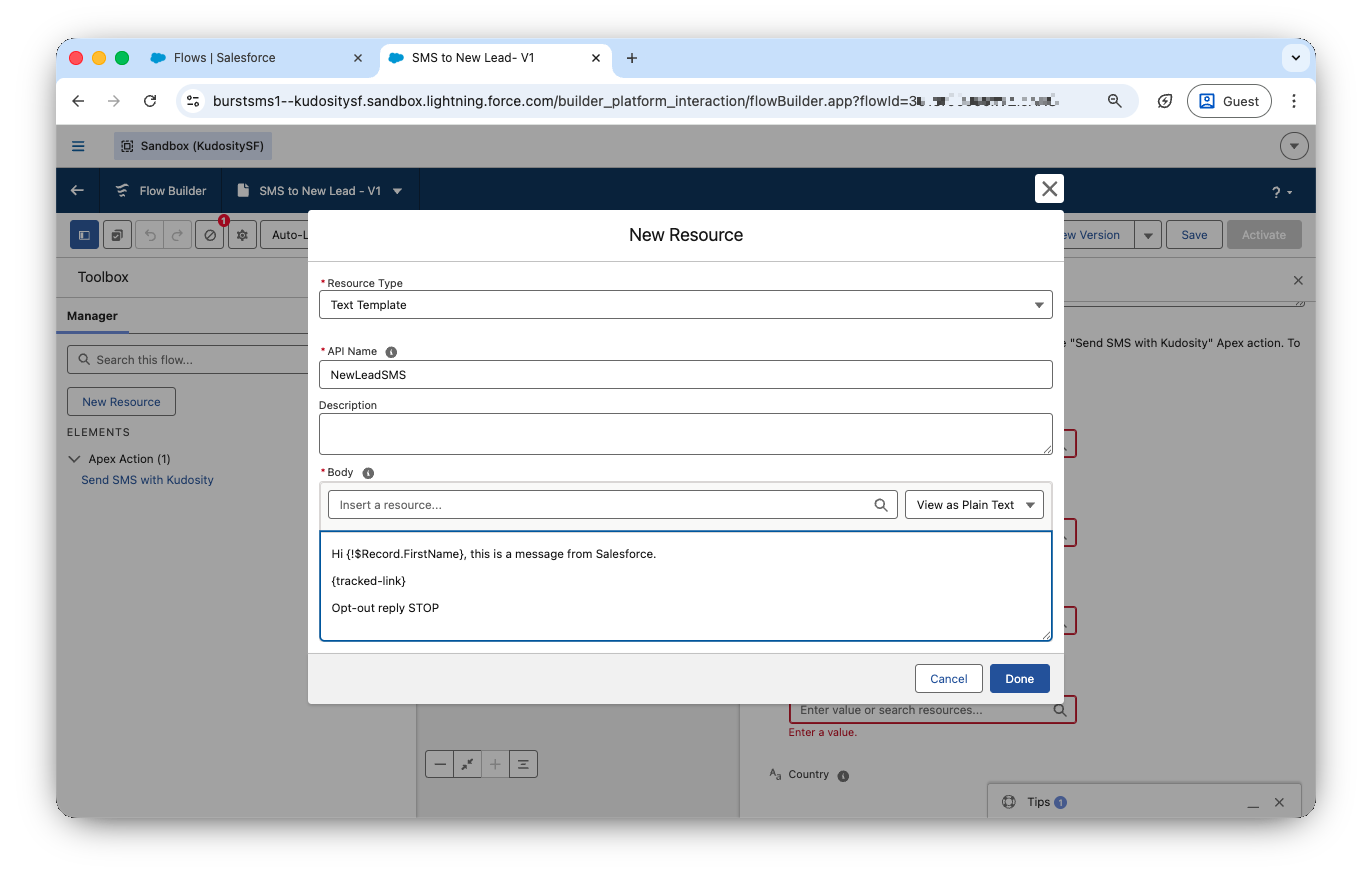
To include a tracked link in your automated message, use the
{tracked-link}variable in your message body.
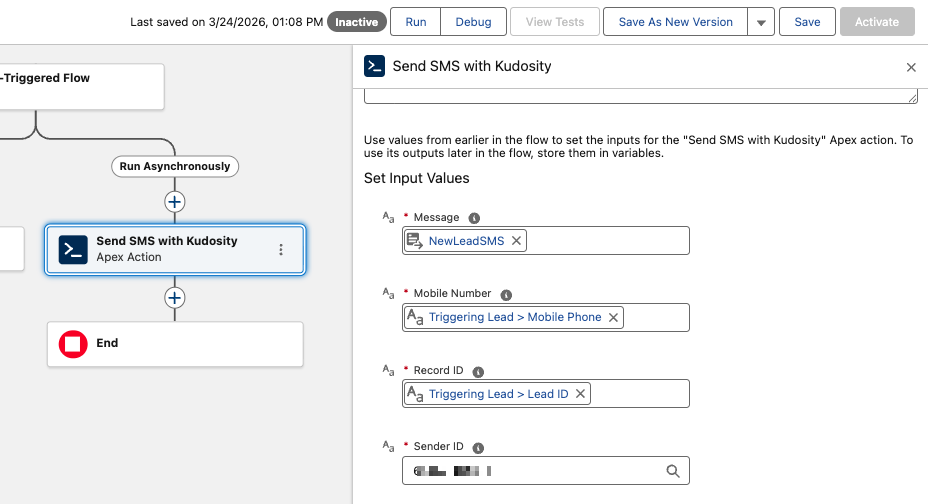
Step 6 — Set Input Values for the Action
Map the following fields in the action element:
Field | Value | Required |
|---|---|---|
Message | Your Text Template resource |
|
Mobile Number | Triggering Lead → Mobile Phone |
|
Record ID | Triggering Lead → Lead ID |
|
Sender ID | Your hardcoded verified sender number |
|
Country | Optional — for multi-country sends |
|
Retry Validity | Optional — stop retrying after this period |
|
Send At | Optional — for scheduled sends |
|
List ID | Optional — to send to a specific SMS list |
|


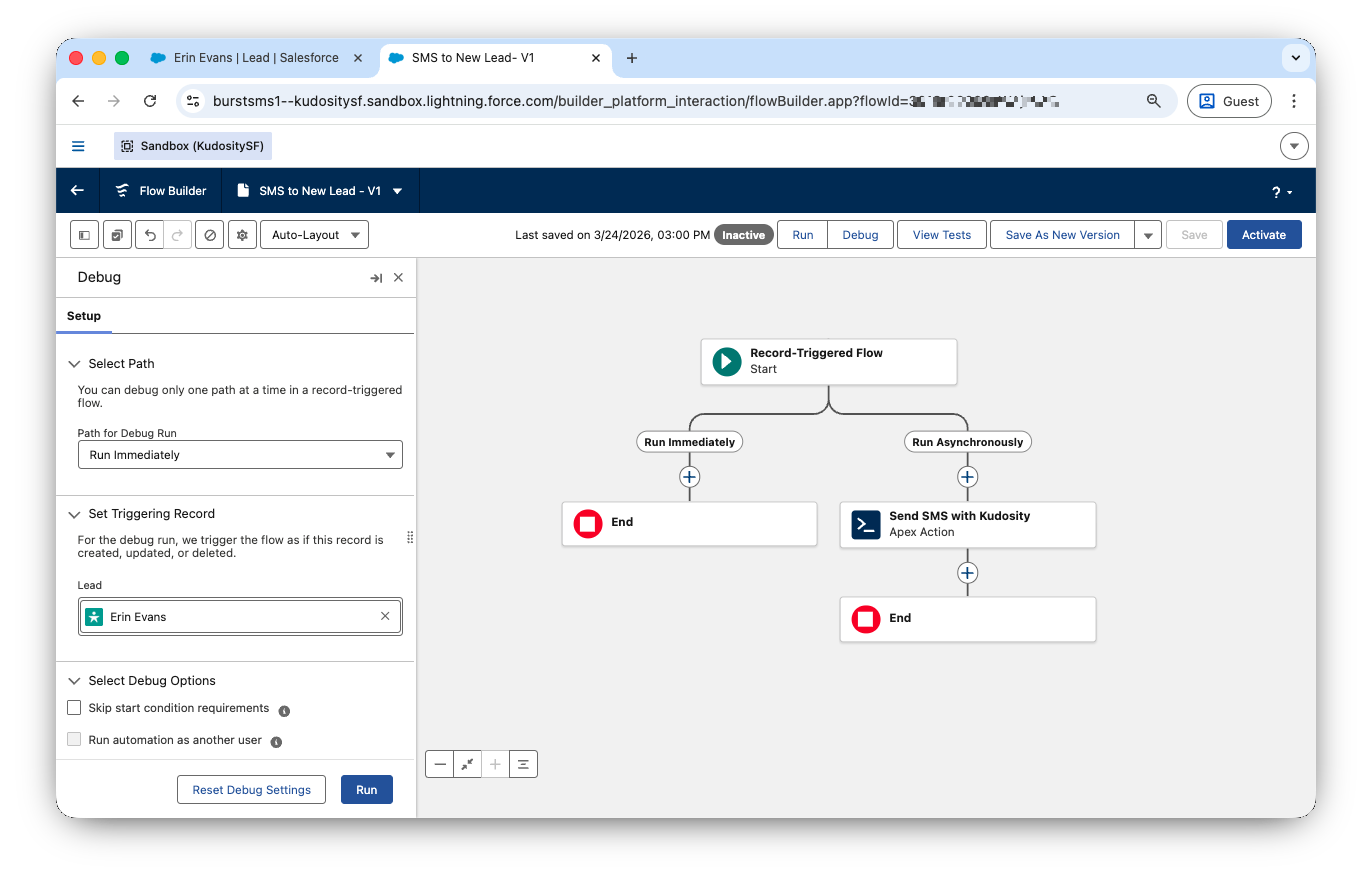
Step 7 — Debug and Activate
Click Save on the Flow canvas.
Click Debug to run a test before going live — confirm the SMS appears in your Kudosity Sent tab.
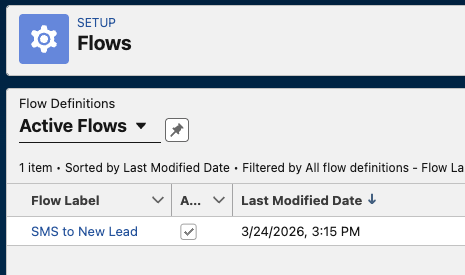
Click Activate once confirmed working.
Kudosity fires Platform Events back to Salesforce for the following:
Event | Description |
|---|---|
Delivery | Message was successfully delivered to the recipient |
Reply | Contact sent an inbound reply |
Link Hit | Contact clicked a tracked link in your message |
These events can be used as triggers in a Platform Event-Triggered Flow to continue automation based on customer engagement — for example, updating a lead status when a reply is received, or enrolling a contact in a follow-up sequence when they click a link.
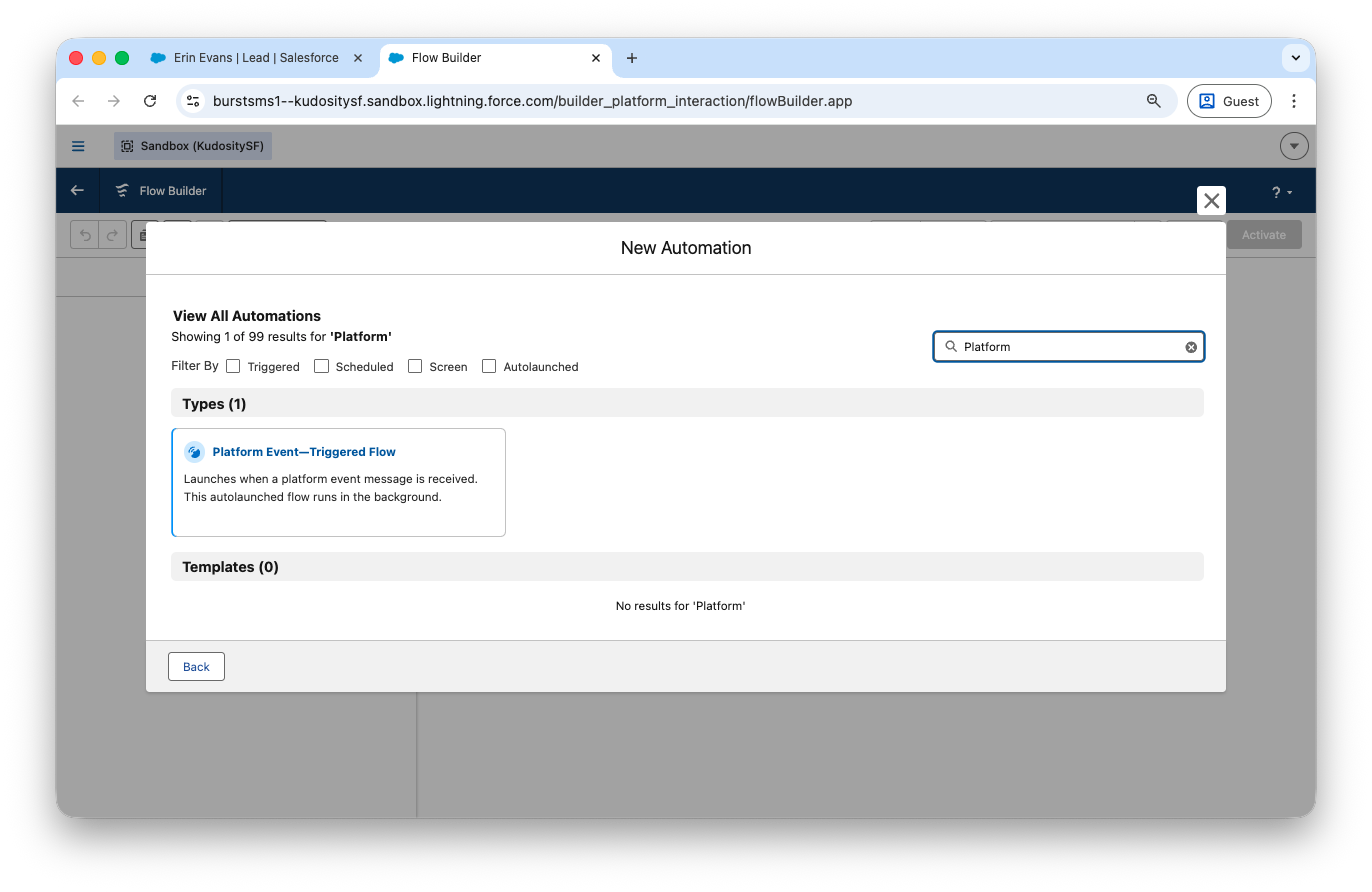
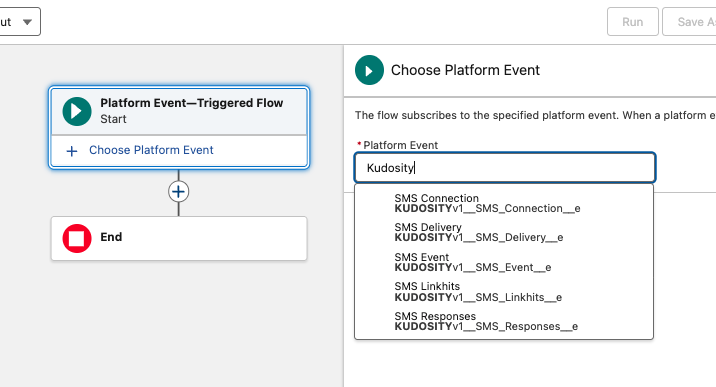
To use a Kudosity Platform Event as a Flow trigger:
Click New Flow and select Platform Event-Triggered Flow.
In the Start element, search for
Kudosityin the event picker.Select the relevant event — Delivery, Reply, or Link Hit.
Build your automation logic from there.
Use Case | Trigger | Action |
|---|---|---|
New lead welcome SMS | Lead created | Send personalised SMS via Text Template |
Appointment reminder | Record updated (date field) | Scheduled SMS via Send At field |
Post-purchase follow-up | Opportunity Closed Won | Send SMS with tracked link |
Re-engagement | Reply received (Platform Event) | Update lead status + send follow-up SMS |
Link engagement nurture | Link Hit (Platform Event) | Add to campaign or update CRM field |
SMS not sending from Flow — confirm the action element is set to run asynchronously. Check entry conditions to verify the mobile number field is not null. Verify the Sender ID is hardcoded correctly in the action input values. Run Debug to inspect the full flow execution path.
Flow activates but no SMS received — confirm the Sender ID is verified in your Kudosity account. Check the Kudosity Sent tab — if the message appears there, the issue is carrier-side. Confirm the mobile number is in the correct international format.
Platform Events not returning to Salesforce — confirm Live Responses / Reporting ECA is connected and showing CONNECTED in the Kudosity setup screen. Re-run the ECA setup if the connection has lapsed.
More ways to send SMS from Salesforce

Installation & User Guide
Step-by-step installation and configuration guide for the Kudosity Salesforce package

Sending Bulk Messages
Send bulk SMS campaigns directly from Salesforce to any object, any list view, with personalisation and delivery tracking.

1-to-1 SMS Conversations
Embed a live SMS conversation panel on any Salesforce object page for real-time 1-to-1 messaging alongside the CRM record.
Ready to automate SMS in Salesforce?
Get hands-on help from our team for customised Salesforce integrations, or jump straight into the installation guide and set up in minutes.
Activate Salesforce Integration
Instant access. Billed at $49/month add-on.