RCS Onboarding Guide: Set up, test and launch your agent
:quality(80))
Bring your brand to life
RCS is the future of rich business messaging. Bring your brand to life with messages sent from a verified business profile, complete with your name, logo and contact details, so customers recognise your business and connect with confidence.
This guide takes you from setup to launch: create your RCS agent in Kudosity, see your brand in action with test messages on your own phone, and submit it for approval before you start messaging customers. RCS agent approval timelines differ by country and by carrier.
Create your agent
In the left-hand menu, open RCS › RCS agents and click Create agent. A four-step wizard takes you through the agent's details, its public profile, a review, and a first test.
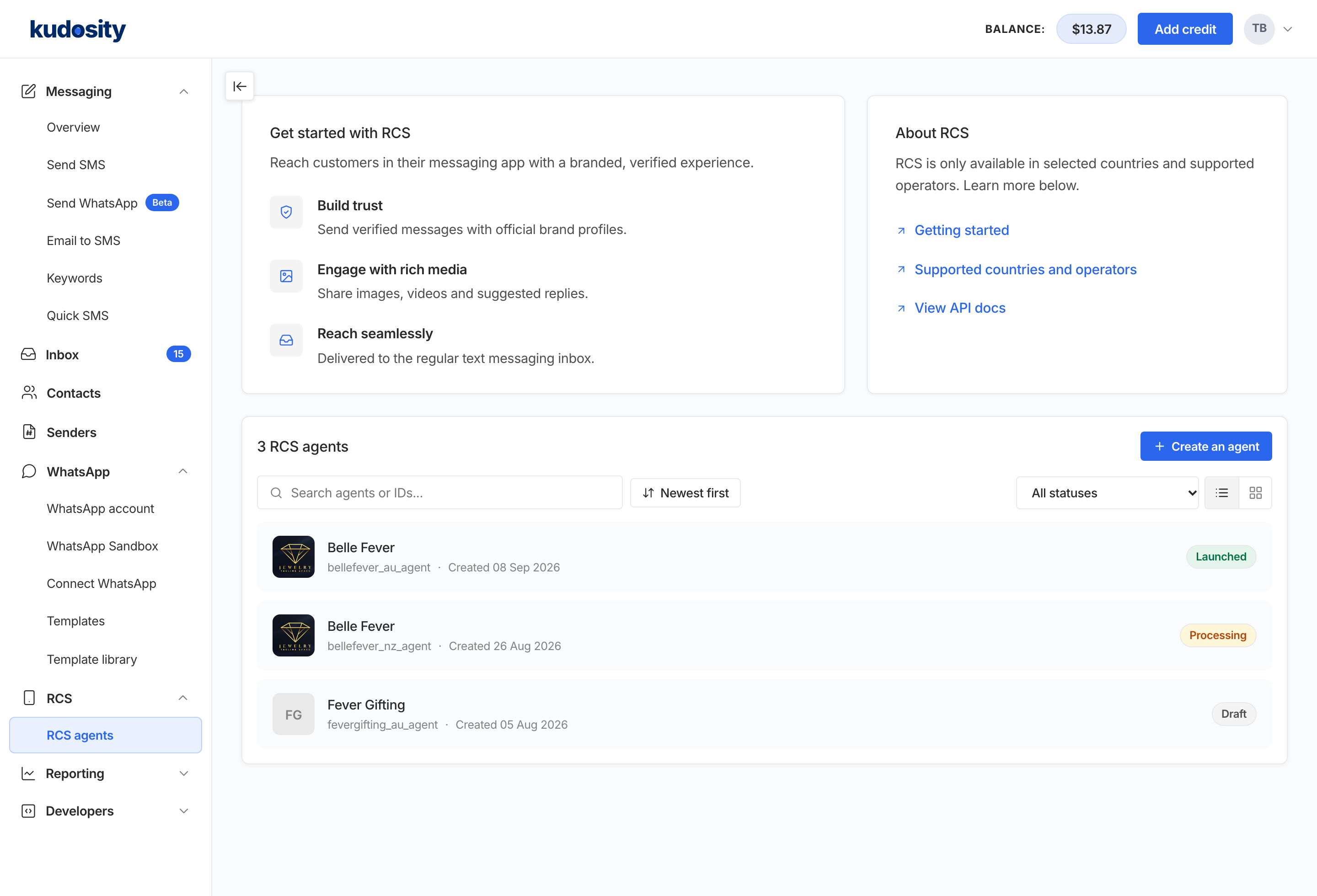 The RCS Agents page with the Create agent button.
Agent details
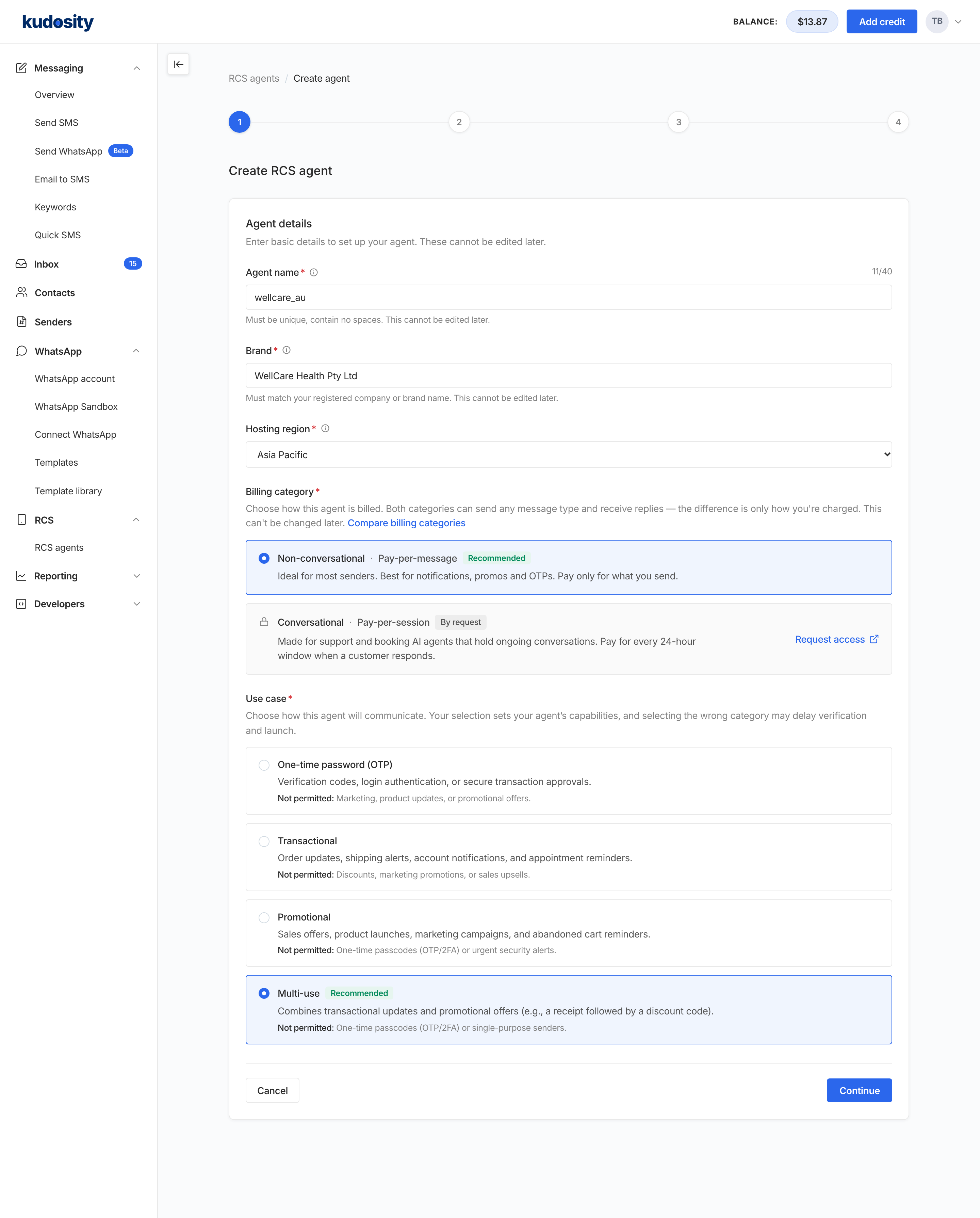 Agent details: brand name, hosting region, billing category and use case
These five choices are permanent once the agent is created, so review the options carefully.
Agent name. A unique name for the agent, up to 40 characters with no spaces, for example wellcare_au.
Brand name. Your registered business or trading name. If your account already has a brand, it is filled in and cannot be changed.
Hosting region. Asia Pacific, North America or Europe. Choose the region of the countries you will send to.
Billing category. How the agent's messages are charged.
- Non-conversational (pay per message). Selected for you, and suits most senders: notifications, promotions, OTPs and the No Code RCS Upgrade.
- Conversational (pay per AI session). For AI agents that hold ongoing back-and-forth chats. Available by request: click Request access to contact us.
Use case. Choose how this agent will communicate. Carriers check that your messages match the use case.
- Multi-use (recommended). Transactional updates and promotional offers from one agent. Suits most businesses.
- OTP. One-time passwords and verification codes only.
- Transactional. Service messages such as order updates, appointment reminders and account alerts. No promotional content.
- Promotional. Marketing messages such as offers, sales and campaigns.
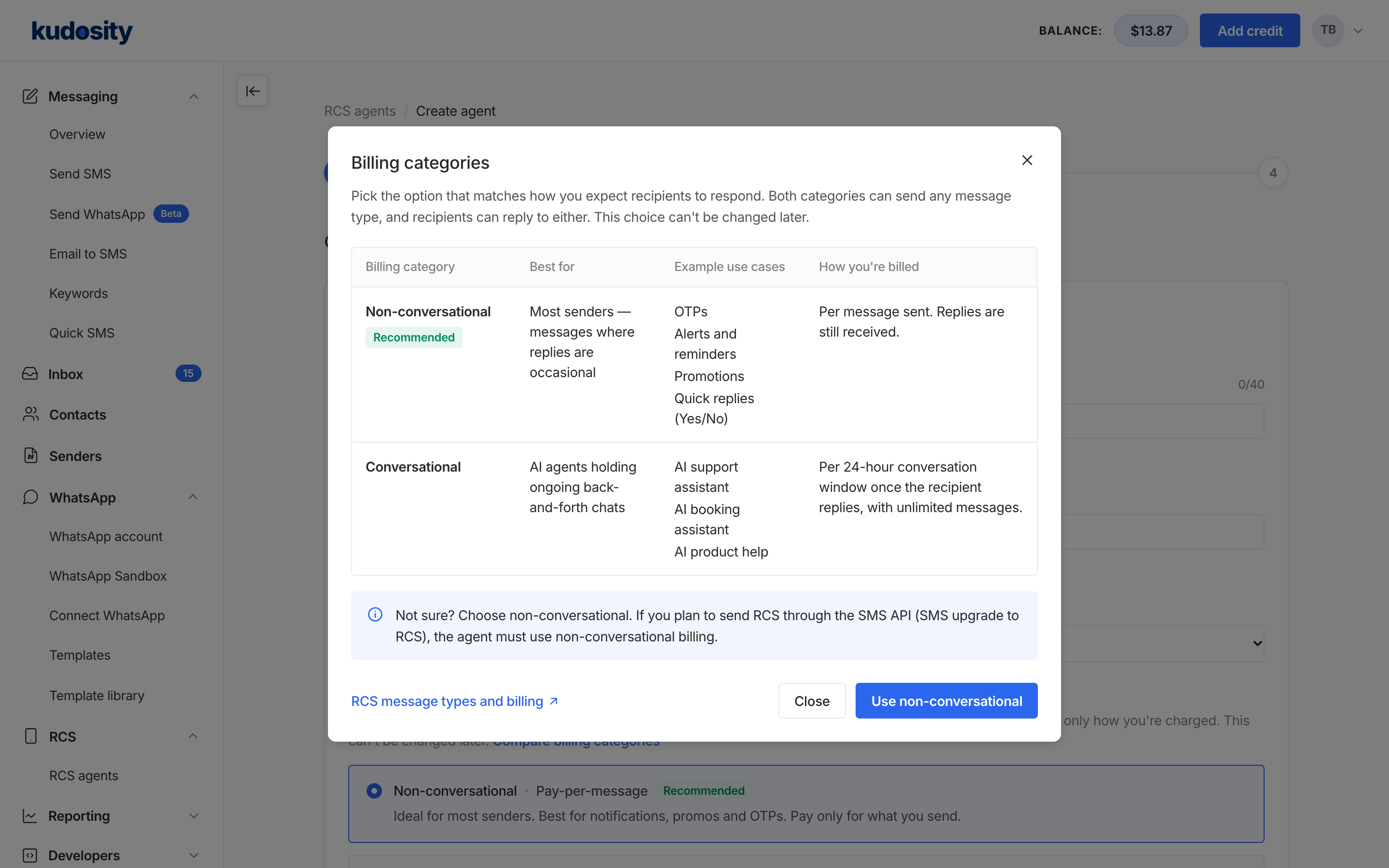 The Compare billing categories dialog.
Click Continue.
Public profile
Define how your brand appears to your customers receiving RCS messages.
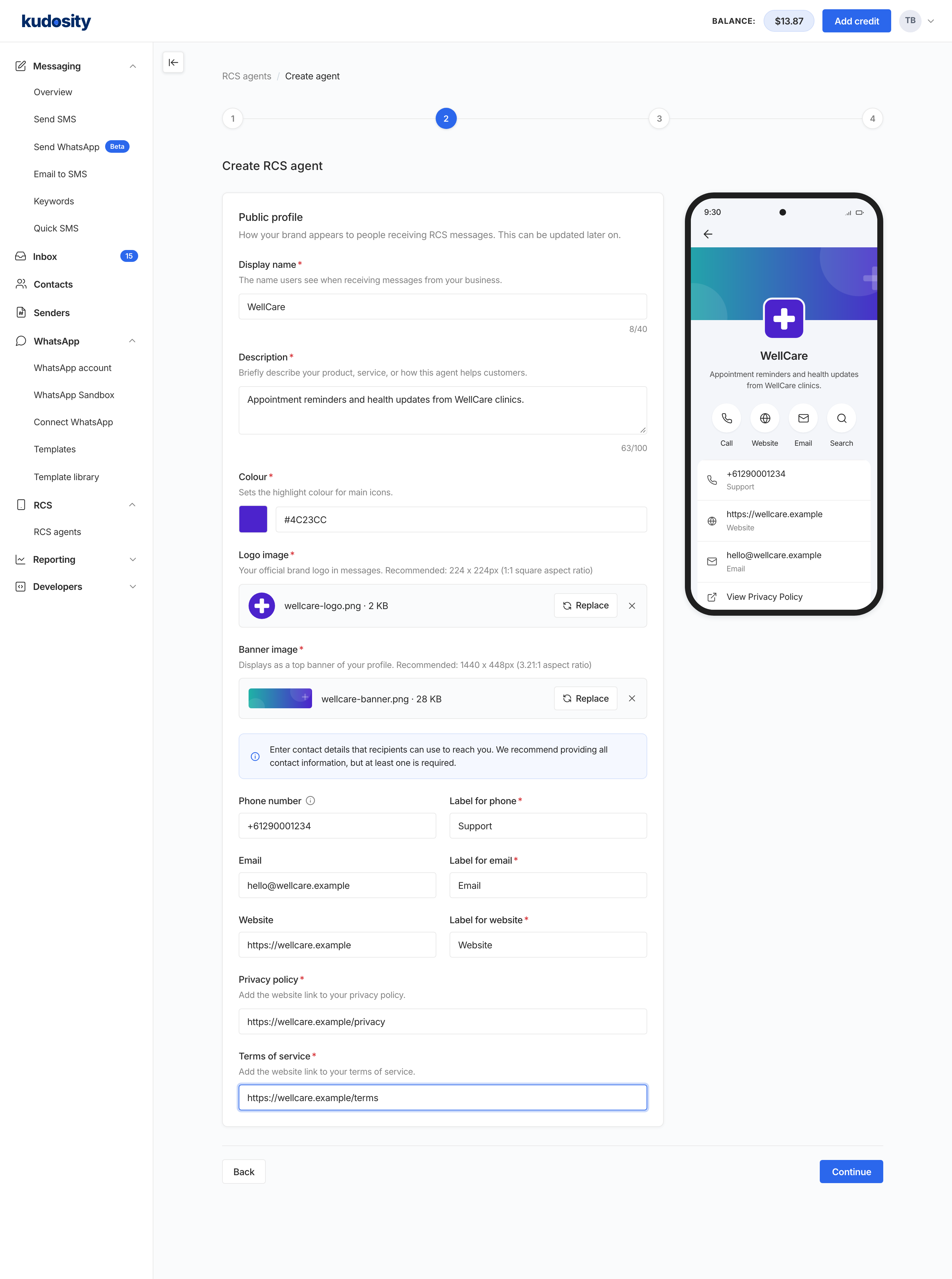 Public profile, with the live phone preview.
| Field | What customers see | Details |
|---|---|---|
| Display name | The name at the top of the conversation and on the profile | Up to 40 characters. Your brand name as customers know it. |
| Description | One line under the name on the profile | Up to 100 characters of plain text. Say what the agent does; some carriers reject taglines and slogans. |
| Colour | The highlight colour for the main icons | A six-digit hex colour. It must have a contrast of at least 4.5:1 against white, so pastels are rejected. |
| Logo image | The circular avatar beside every message | 224 × 224 px (square), PNG or JPEG, 50 KB or smaller. |
| Banner image | The header image on the profile | 1440 × 448 px, PNG or JPEG, 200 KB or smaller. |
| Phone number and label | The Call button | International format, for example +61412345678. Any customer-facing line, separate from the SMS fallback sender. Label up to 25 characters, such as “Support”. |
| Email and label | The Email button | Label up to 25 characters. |
| Website and label | The Website button | An http or https address. Label up to 25 characters. |
| Privacy policy | A View Privacy Policy link on the profile | A public https URL that opens without a login. Carriers open it during launch review. |
| Terms of service | A View Terms of Service link on the profile | A public https URL that opens without a login. Carriers open it during launch review. |
Review
Check the summary. Agent name, brand name, hosting region, billing category and use case cannot be changed after this point. The public profile can be edited until the agent is verified for launch. Use Back to fix anything, then click Create this agent.
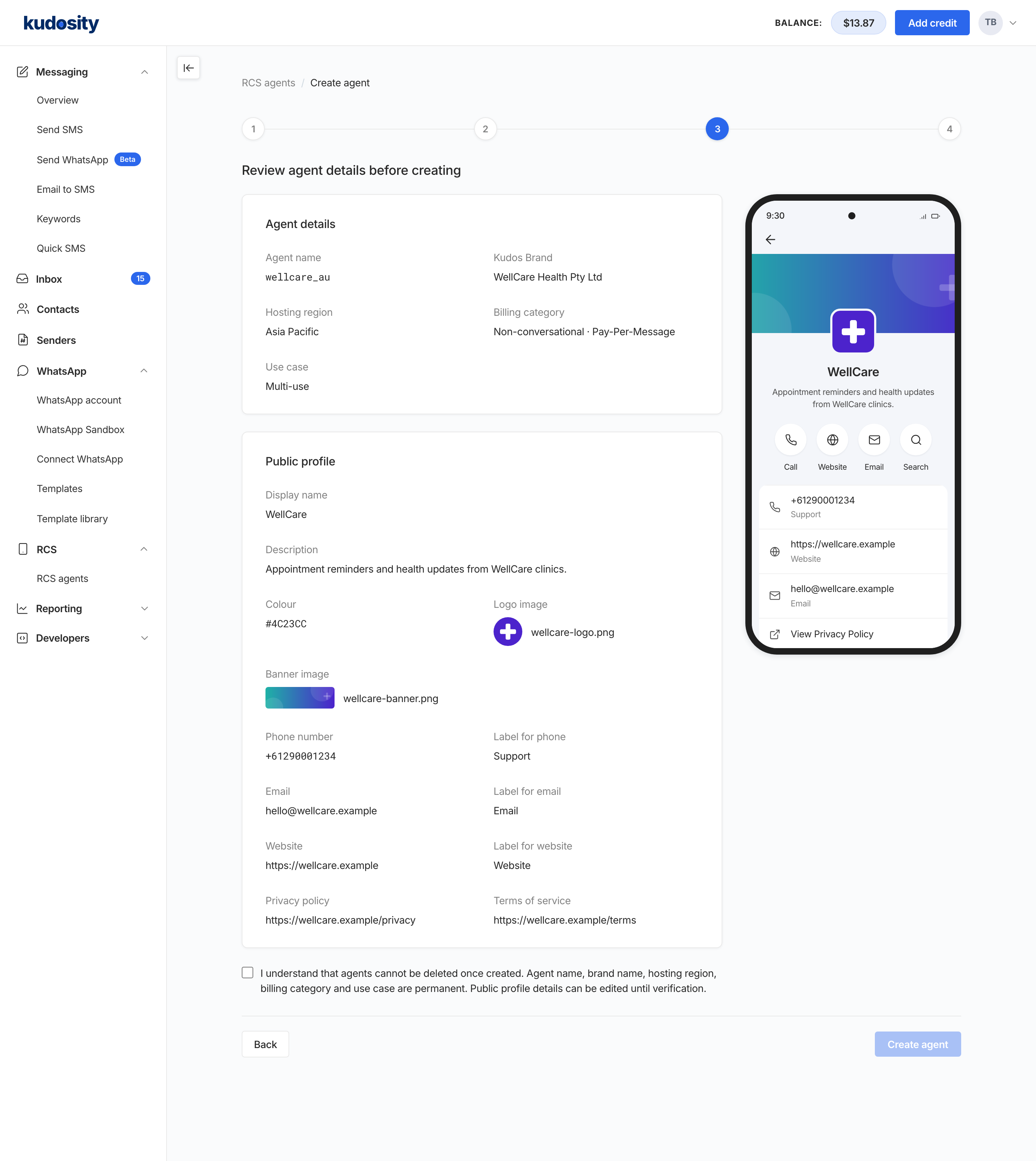 Review: everything the agent will be created with.
Test your agent
The last step of the wizard is a first test. The same Test devices table and Send a test message card are on the agent's Test message tab, so you can come back and test at any time.
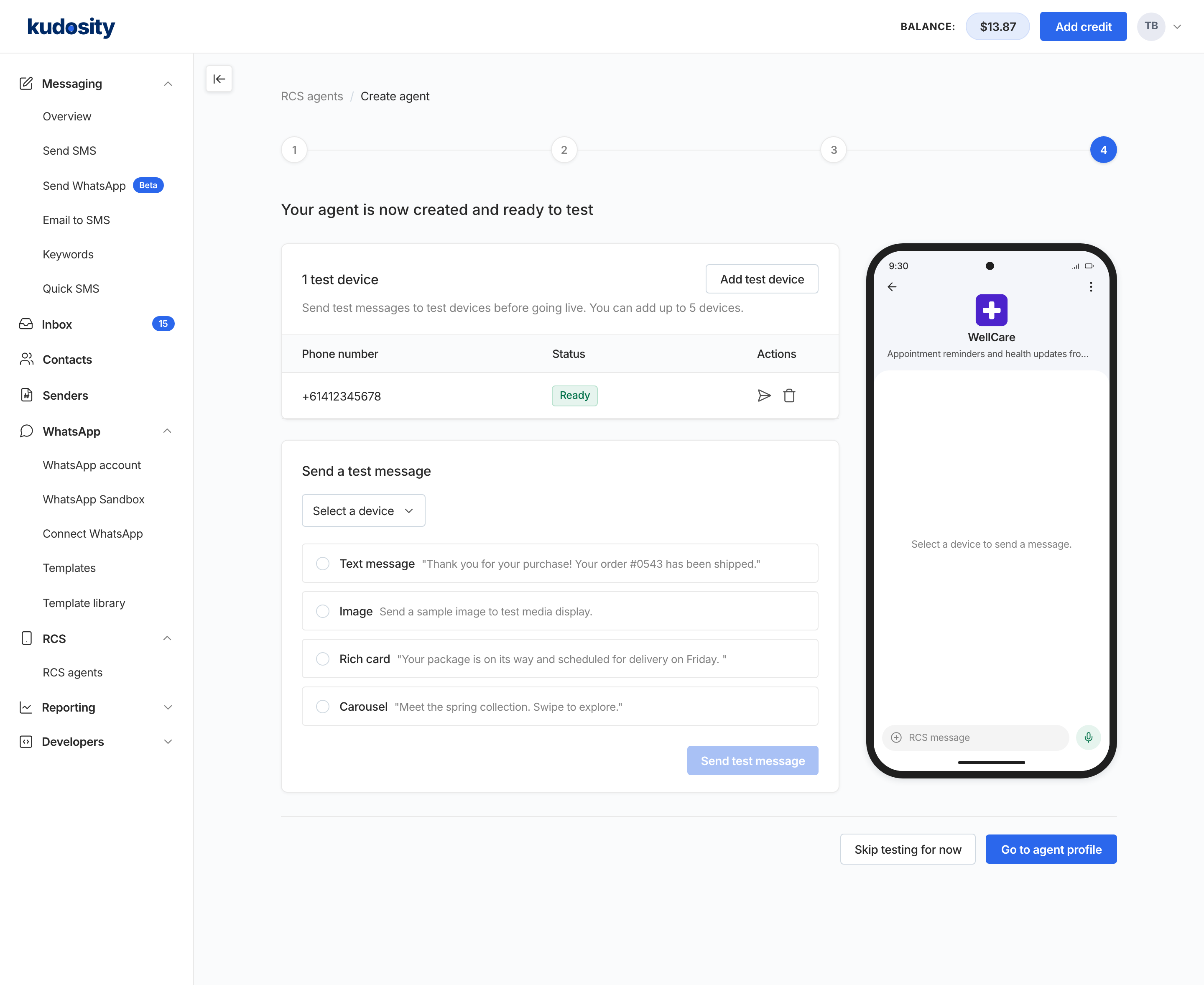 The test step: test devices and the Send a test message card.
You need a phone that can receive RCS:
Android. Any Android phone with RCS switched on in Google Messages.
iPhone. An iPhone on iOS 18 or later, with RCS turned on in Messages settings, can be a test device in countries where RCS business messaging is enabled for iPhone.
Testing with an Australian mobile number? Use an Android phone for now. RCS business messaging is not yet available on iPhones using Australian mobile networks.
Click Add test device. Enter the number in international format, for example +61412345678, and click Add device. You can add up to 5 devices.
Under Send a test message, choose an accepted device and select one of the pre-made messages to send to your phone to see your brand in action.
Check the phone. The message arrives from your branded profile with your logo, name and description. Until the agent is launched, some operators label it as unverified.
Click Save & complete to go to the agent's page.
Launch
Test thoroughly before you launch. Once you click Launch agent, the profile is locked and carriers review the agent exactly as you submitted it. Fixing a mistake after launch needs Kudosity's help and can mean a fresh verification or even a new agent. Before you launch, check that:
Test messages arrive on each test device from your branded profile, with the right name, description, logo and banner.
The logo and banner look right on the phone, not cropped or blurry, and the colour is easy to read.
The Call, Email and Website buttons work: the number reaches the right line, the email goes to an inbox someone monitors, and the website opens.
The privacy policy and terms of service links open publicly, without a login.
The messages you plan to send match the use case you chose.
When everything checks out, open the agent's page and click Launch agent. Once the launch process begins, Kudosity will contact you, as you will need to complete some additional forms to verify your business for the RCS agent.
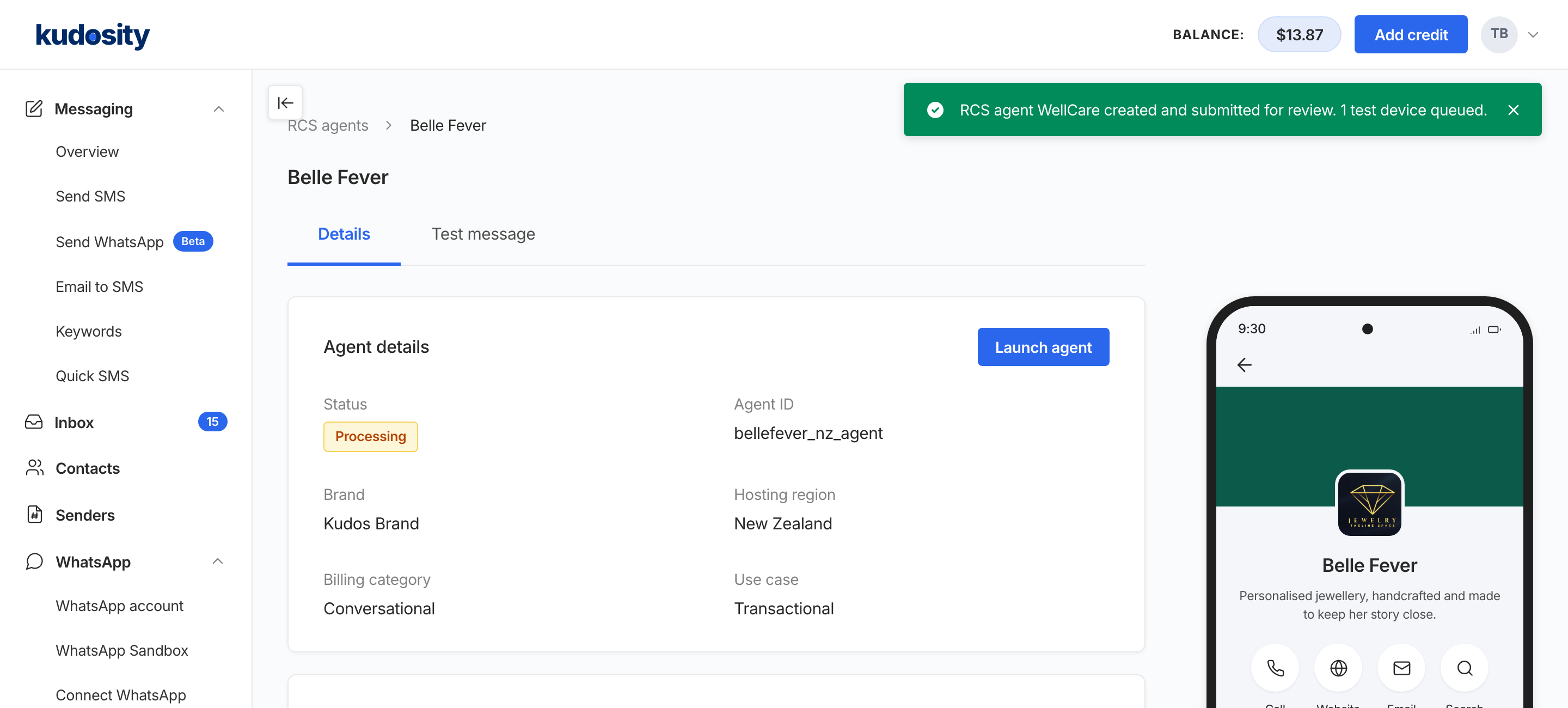 The agent page with the Launch agent button.
Timing depends on the country. Where Google alone approves and you reply promptly, launch takes two to three days. Where operators run their own checks, allow weeks. Brazil's fastest launch took 17 days; the United States and Canada take longer.
FAQs
RCS is not switched on for your account yet. Contact your account manager to have it enabled.
Not yet. Each account holds one RCS agent, and the Create agent button is disabled once one exists. Separate brands or separate regions need separate accounts for now.
Not after the agent is created. Check them on the Review step before you click Create this agent. Contact your account manager if one is wrong; some changes mean a new agent.
The profile is editable only while the agent is Ready for testing. Changes to a launching or live agent need Kudosity's help and may trigger a fresh verification.
Five per agent. Devices cannot be removed from the app, so choose them carefully.
Yes. Set up and test now, then launch when the market opens. See the RCS Country Availability Guide.
Keep exploring
:quality(80))
:quality(80))
:quality(80))
:quality(80))
:quality(80))
:quality(80))
Ready for more in-depth messaging insights?
Discover 2026 messaging trends with this free guide, offering insights on how to reach more customers, boost engagement, and stay compliant with Australian privacy laws
:quality(80))
:quality(80))